Find out about the Appraisal process on JPA.
What you need to know
Before you begin your appraisal task please read the guidance on the following processes:
What you need to know
You may want to view your appraisal on JPA for yourself or when:
- notified to action your appraisal by your 1RO (see also Update your own appraisal)
- notified that your appraisal has been finalised
What you need to do
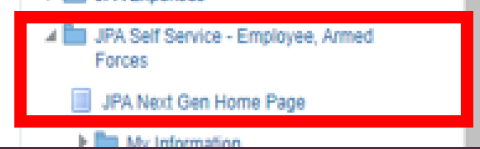
- logon to JPA and select JPA Self Service – Employee, Armed Forces > JPA Next Gen Home Page
- click on the My Career sub-menu
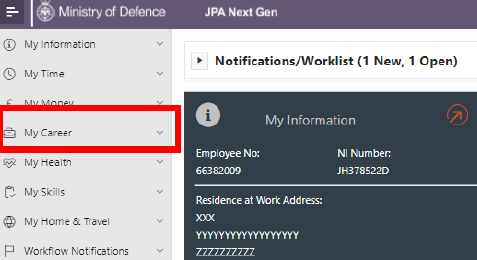
- click on View Own Appraisal
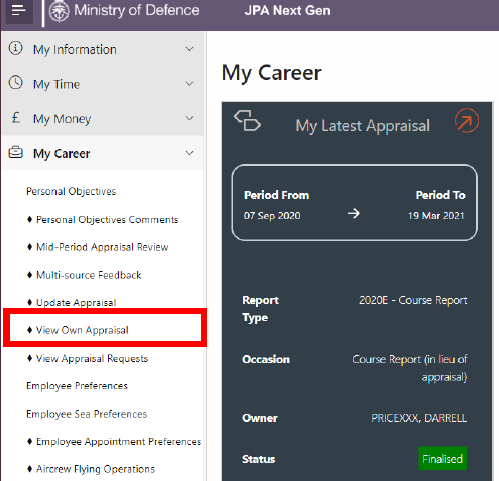
- Click the Appraisal you wish to view
What you need to know
Updating your Appraisal will require the loading of Java scripts. This will appear as a downloaded file at bullet point 'click on Update Appraisal' and 'click the JPA Appraisal Form link'. You must activate this to continue.
There are 2 routes to updating Appraisals:
- Using the Self-Service menu on JPA
- When notified to action your Appraisal by your 1RO through a workflow notification
What you need to do
Using the Self-Service Menu
- logon to JPA and select JPA Self Service – Employee, Armed Forces > JPA Next Gen Home Page
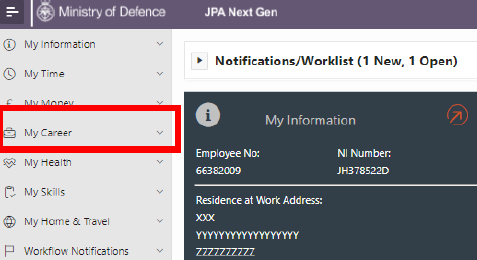
- click on the My Career Sub-Menu
- click on Update Appraisal and the grey Oracle applications Appraisal List will open
- select the Appraisal you wish to update
- view all parts of the Appraisal that you have access to. This includes:
- the Details tab, ensuring that the Personal, Responsibilities, Objectives, Preferences, and Comments sub-tabs are correctly populated
- the 1RO tab, reading through the Performance Grades and Narrative sub-tabs
- the Recommendations tab, which has been populated by the 1RO
- the Inserts tab, which will only be populated when applicable
- click on the Subject tab
- click on the Complete button if you do not have any comments to make
The Have no comments and the Date Seen (when first opened) will appear as a default. If you wish to add comments, you should click on the drop-down menu and select Have commented below. Spell check functionality is built into the JPA Appraisals Extension.
A note box will appear stating that your participation in the appraisal is now complete.
- click OK
Updating Appraisal through Workflow Notification
- logon to JPA and select JPA Self Service – Employee, Armed Forces > Workflow Notifications to open the Workflow Notifications list
- select the relevant workflow, e.g. Appraisal Report for Period xxx. The workflow message will appear
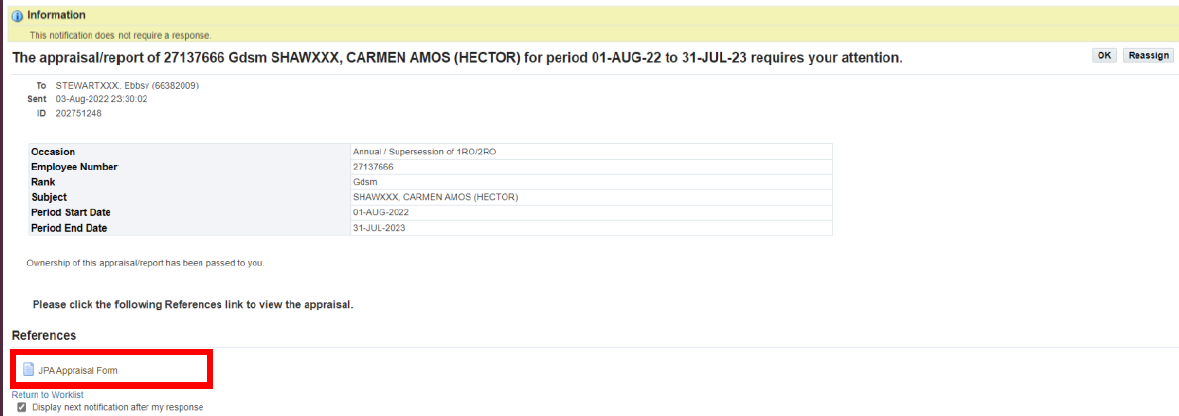
- click the JPA Appraisal Form link within the workflow and grey Oracle applications Ongoing Appraisal Form will open
- select the Appraisal you wish to update
- view all parts of the Appraisal that you have access to. This includes:
- the Details tab, ensuring that the Personal, Responsibilities, Objectives, Preferences, and Comments sub-tabs are correctly populated
- the 1RO tab, reading through the Performance Grades and Narrative sub-tabs
- the Recommendations tab, which has been populated by the 1RO
- the Inserts tab, which will only be populated when applicable
- click on the Subject tab
The Have no comments and the Date Seen (when first opened) will appear as a default. If you wish to add comments, you should click on the drop-down menu and select Have commented below. Spell check functionality is built into the JPA Appraisals Extension.
- click on the Complete button if you do not have any comments to make
A note box will appear stating that your participation in the appraisal is now complete.
- click OK
What you need to know
If saving and sending an appraisal electronically, save the appraisal as you would normally (i.e Click File > Save as) in a secure area and send it to its intended destination as an attachment following the relevant security protocols.
Do not export the appraisal from JPA.
What you need to do
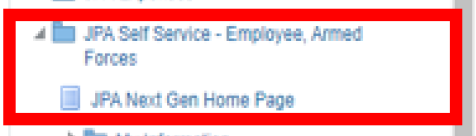
- logon to JPA and select JPA Self Service – Employee, Armed Forces > JPA Next Gen Home Page
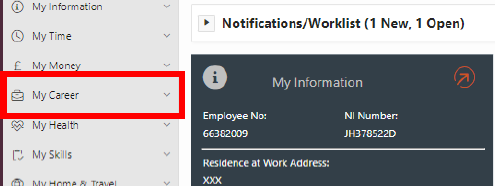
- click on the My Career Sub-Menu
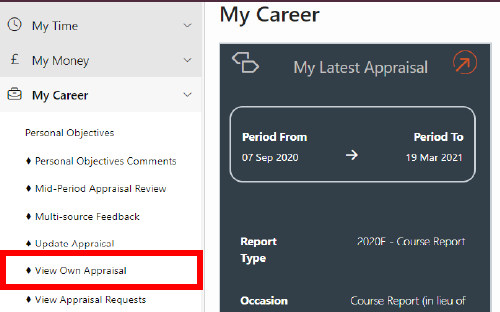
- click on View Own Appraisal
- click the Appraisal you wish to view
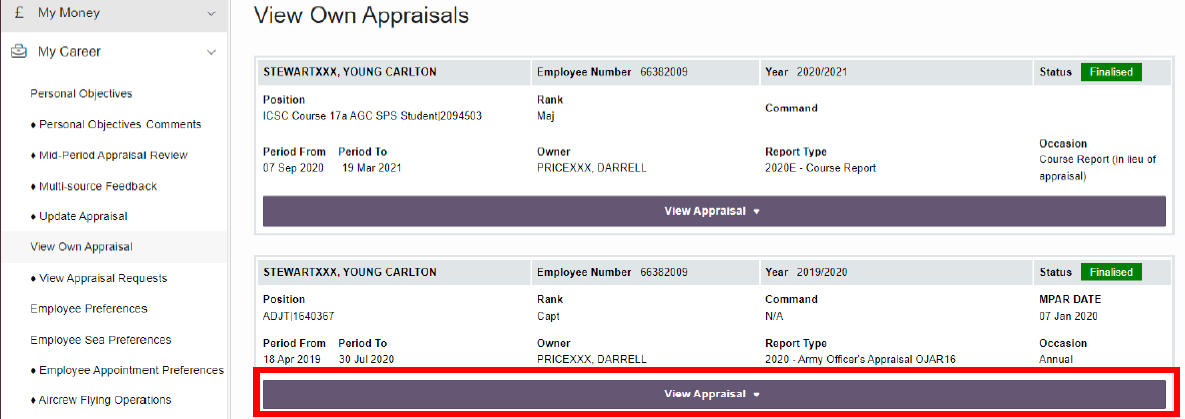
- select the Print Appraisal Button

A pop-out message will appear notifying you that a Request has been generated.
- click View
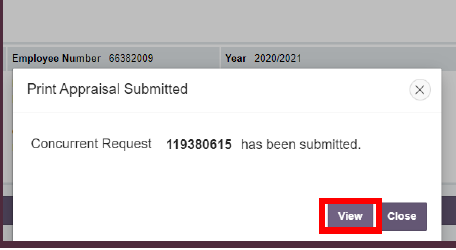
- this will lead to a classic white Self-Service user screen called Requests. Check all your internet browsers as this may open in a different browser
Click Refresh on the screen showing the Requests page until the Output button appears in the Output column. The Output button looks like a spiral-arrow with two pages of paper.

- click the Output button and a Word document version of the appraisal will open
- if printing the appraisal, print as you would a normal Word document i.e. Click File > Print
