What you need to know
All Next of Kin information can be viewed and amended within JPA.
If you have a Defence Gateway account you can do this from your own personal device on the MyDetails app (part of the My Series)
What you need to do
To manage Next of Kin contact information you will need to:
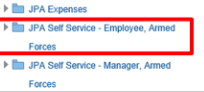
- logon to JPA and select JPA Self Service – Employee, Armed Forces
- click Personal Information
The 'Personal Information' screen will be displayed.
- scroll Down the page to show the Contacts section
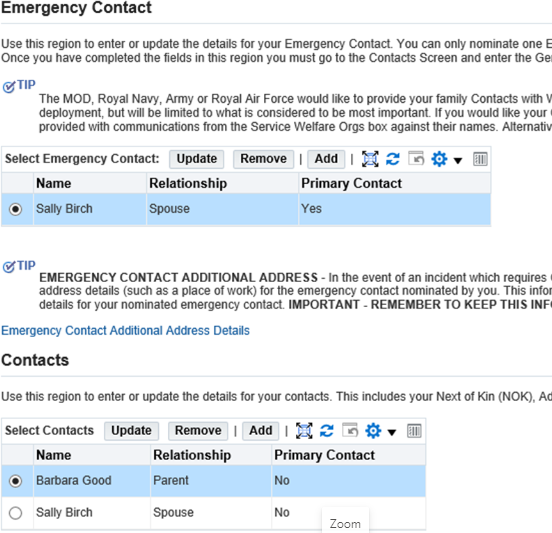
If you have an existing contact that you want to mark as your legal Next of Kin, you need to:
- select the radio button next to the contact you wish to make you next of kin and select update
The 'Dependent and Beneficiary: Update' screen will be displayed.
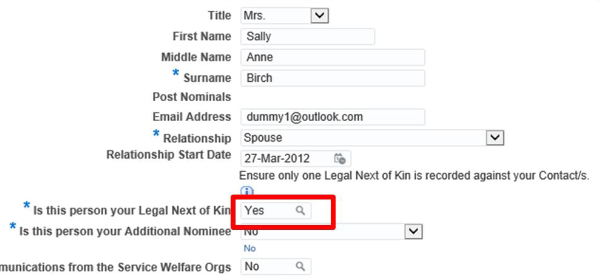
- in this screen you can amend the General Information about your Next of Kin contact such as Name, Relationship etc. Fields marked with an asterisk * must be completed
- type Yes in the Next of Kin field
- click Next
The 'Personal Information: Review' screen will be displayed.
If you need to add a new contact and mark them as your Legal Next of Kin, you need to:
- click Add
The 'Dependent and Beneficiary: Create' screen will be displayed.
- in this screen you can enter General Information about your Next of Kin contact such as Name, Relationship etc
- you will also be able to enter their Main Address and Phone Numbers. Field marked with an asterisk * must be completed
- enter the details of your Next of Kin contact in the fields provided
- additional Nominee is an individual in addition to your Next of Kin/Emergency Contact who you wish to be informed in the event of an Emergency
- ensure that you state that the contact is your Legal Next of Kin by entering Yes in the appropriate field
- click on the down arrow in the Gender field and select

- enter Date of Birth of the nominated Next of Kin (this action is to be completed for Emergency Contact, Next of Kin and Contacts)
- click Next
The 'Personal Information: Review' screen will be displayed.
At the end of both of these tasks, check the information thoroughly and ensure it is correct. It is vital that Contact Information is accurate and kept up to date at all times.
You will be able to see the information you are about to submit. If you realise that you have made a mistake you can click the Back button and make changes. If you do not want to keep the information click the Cancel button.
Once completed, Click Submit. The ‘Confirmation’ screen will be displayed and a message will state that your changes have been applied.
When you return to the Personal Information page, the new Contacts will be displayed in the Contacts area.
