You are able to add or amend a comment against one of your personal objectives in JPA. In order to do this, you must have approved Personal Objectives in the system.
What you need to know
There is no save function for Personal Objectives so ensure that you prepare entering Personal Objectives before submitting them to your Line Manager. Personal Objectives submitted will generate a workflow to your Line Manager.
Multiple submissions may cause your Line Manager to approve a workflow that may not be the latest submission. Please inform your Line Manager where multiple submissions have been applied so that they can approve the correct submission.
Ensure that Personal Objectives are made in the relevant period so that they transpose onto the intended Appraisal Report.
What you need to do
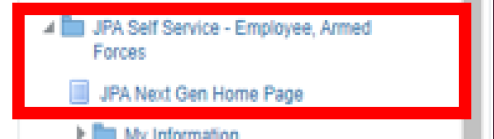
- logon to JPA and select JPA Self Service – Employee, Armed Forces > JPA Next Gen Home Page
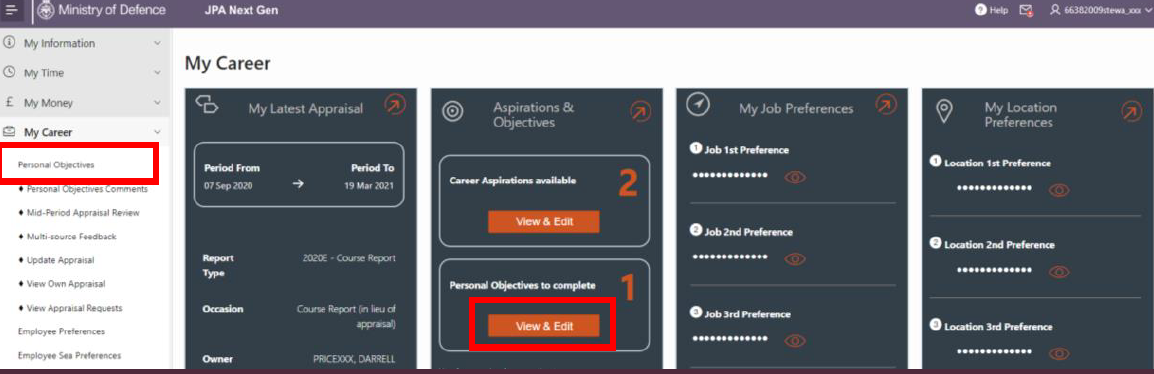
- click orange arrow in right hand corner of My Career
- click either the Personal Objectives menu link or the Personal Objectives View and Edit button in the Aspirations and Objectives tile
- add a Personal Objective(s) by entering the date and text in the data fields provided
You can add up to eight personal objectives. You can add the date the objective was set and a description of the objective. The following information describes how to add a new objective:
- 1st Objective Date Set - This is the date that the objective was agreed (or set)
This field must be completed. If you wish these Objectives to appear on an ongoing Appraisal then this date must fall within the Reporting Period for that appraisal.
- Objective Description - You can type up to 150 characters into this field
A character is one letter or number, space, full stop, comma etc. This field must be completed.
- Objective Description Continued - You can type a further 150 characters into this field if you cannot fit the full description into the other Objective Description field
You can repeat the above for the fields 2nd Objective Description through to 8th Objective Description.
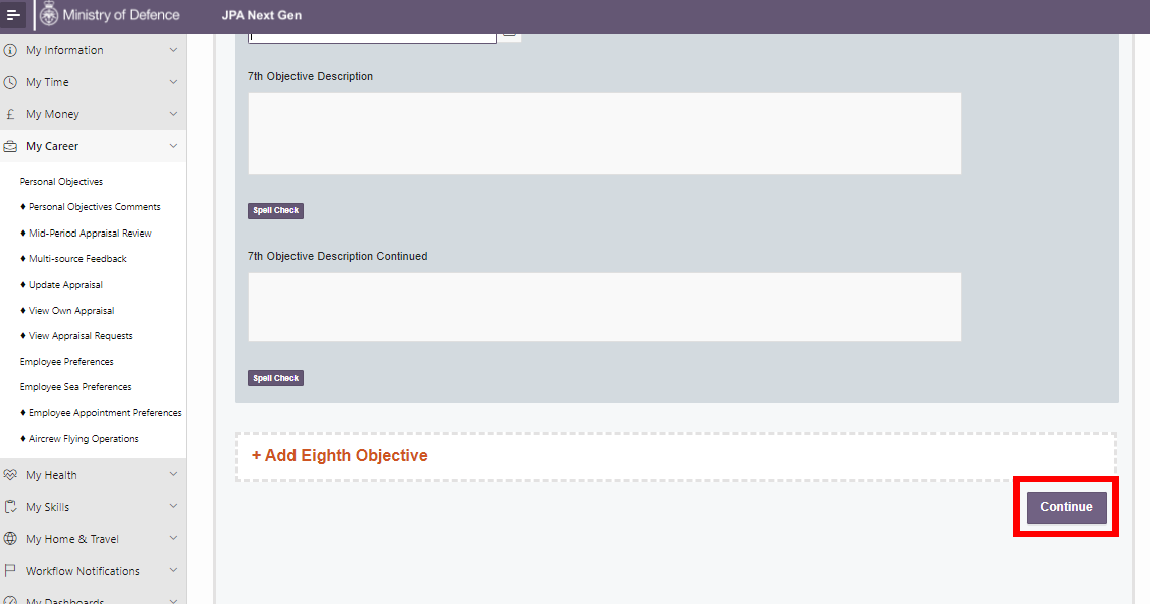
- when all Personal Objectives have been completed, select continue at the bottom of the screen
- a pop-out window will appear asking whether you would like to make comments to your Approver (Line Manager)
You do not have to make comments.
If you think you have made a mistake or would like to review your Personal Objectives before submission, select Review. If you do not want to keep what you have entered, select Cancel. Selecting the Cancel button will cause you to lose your information.
- select Submit and Close when you are satisfied with the information you have entered
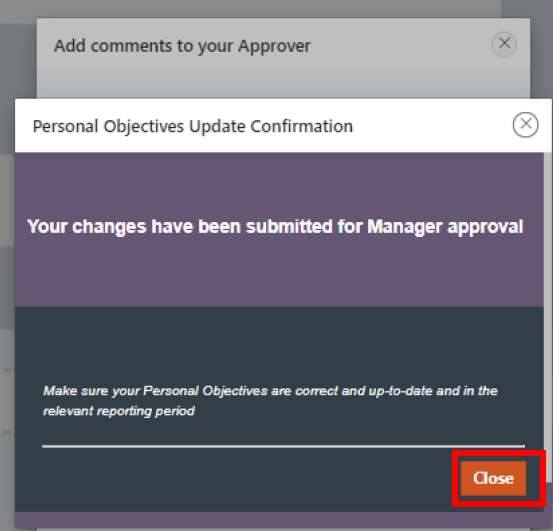
The Confirmation screen will be displayed. These Objectives will then workflow through to your Line Manager and will not update until they have been accepted by them. Please do not attempt further updates until the process has been completed.
If an error message is received, inform your Unit HR Admin.
- select Close to return to the Personal Objectives screen
What you need to know
Before you begin this process be aware of the following information. There is no save function for Personal Objectives so ensure that you prepare entering Personal Objectives before submitting them to your Line Manager.
Personal Objectives submitted will generate a workflow to your Line Manager. Multiple submissions may cause your Line Manager to approve a workflow that may not be the latest submission. Please inform your Line Manager where multiple submissions have been applied so that they can approve the correct submission.
Using the Delete All function at the top of the Personal Objectives page will generate a workflow to your Line Manager that informs them that you intend to delete all Personal Objectives. It may be more efficient to update Personal Objectives by overwriting them.
Ensure that Personal Objectives are made in the relevant period so that they transpose on the intended Appraisal Report.
What you need to do
- logon to JPA and select JPA Self Service – Employee, Armed Forces > JPA Next Gen Home Page
- click orange arrow in right hand corner of My Career
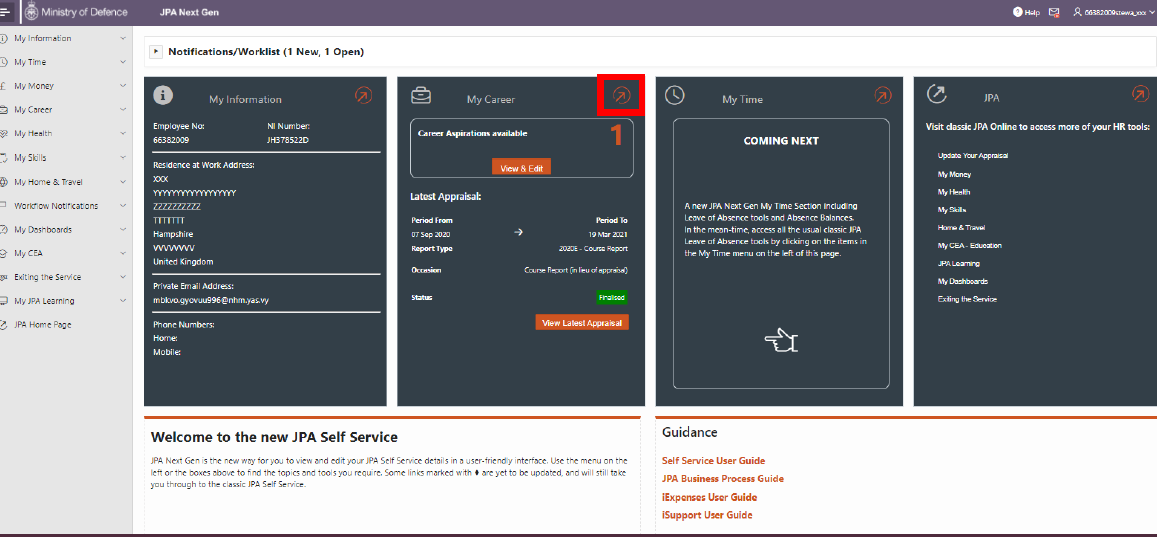
- click either the Personal Objectives menu link or the Personal Objectives View and Edit button in the Aspirations and Objectives tile
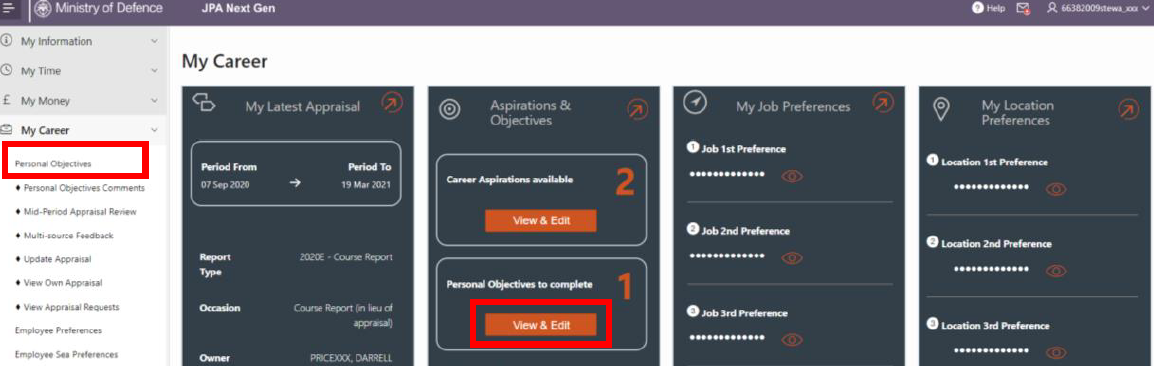
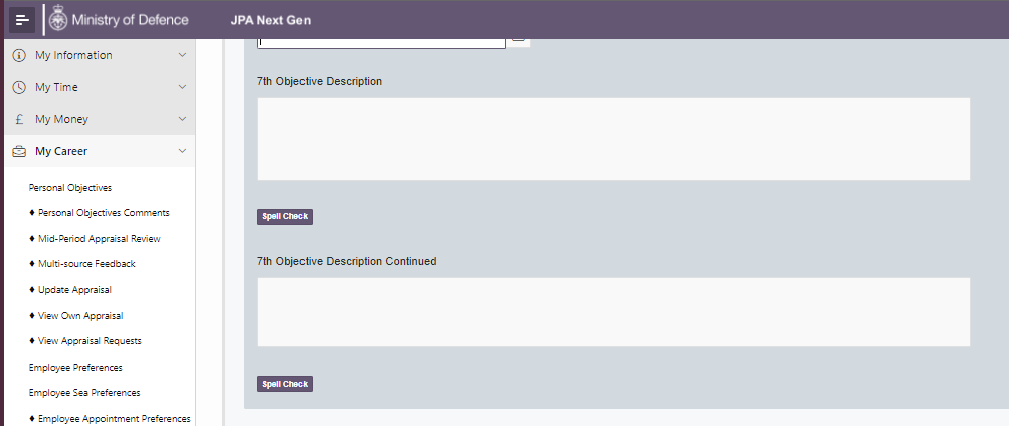
- amend Personal Objectives by overwriting the existing information contained in the data fields
Alternatively, you can remove existing information against a Personal Objective to delete it.
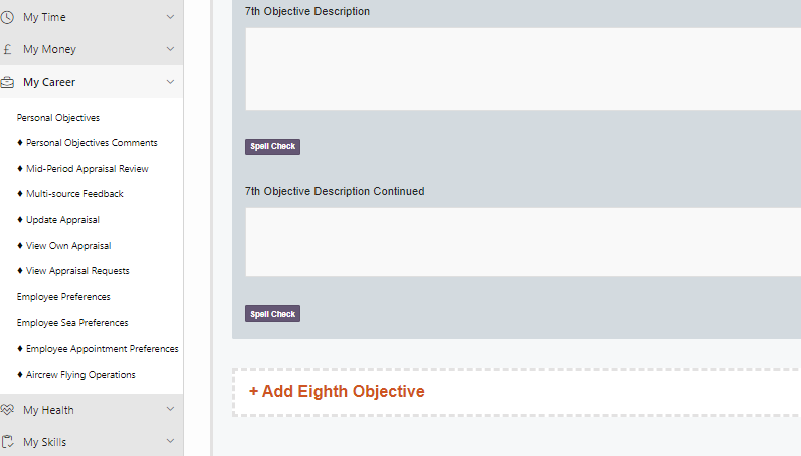
- when all Personal Objectives have been completed, select continue at the bottom of the screen
- a pop-out window will appears asking whether you would like to make comments to your Approver (Line Manager)
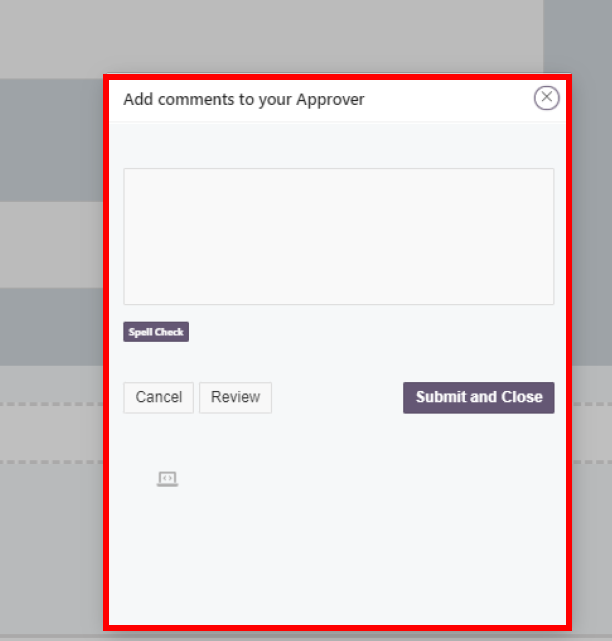
If you think you have made a mistake or would like to review your Personal Objectives before submission, select Review. If you do not want to keep what you have entered, select Cancel. Selecting the Cancel button will cause you to lose your information.
- select Submit and Close when you are satisfied with the information you have entered
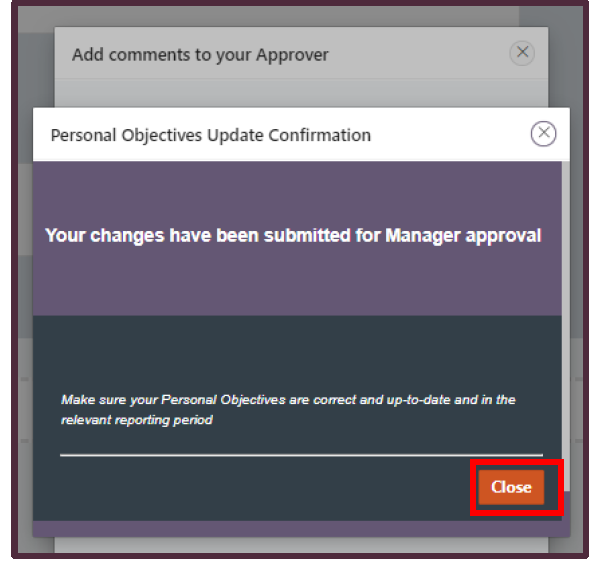
The Confirmation screen will be displayed. These Objectives will then workflow through to your Line Manager and will not update until they have been accepted by them. Please do not attempt further updates until the process has been completed.
If an error message is received, inform your Unit HR Admin.
- select Close to return to the Personal Objectives screen
What you need to know
Once your personal objectives are approved by your Line Manager, you may want to add a comment against them.
What you need to do
To add or amend a personal objective comment:
- logon to JPA and select JPA Self Service – Employee, Armed Forces
- click Personal Objectives Comments link under the My Career section
A screen will appear with Personal Objective Comments fields. Each field has a capacity of 300 characters. The first Personal Objective Comments field is aligned to the first Personal Objective, the second Personal Objective Comments field is aligned to the second Personal Objectives and so on.
The status of Personal Objectives will affect the editability of Personal Objective Comments. Only Personal Objectives that have been approved by Line Managers can have Personal Objective Comments made against them. If a Personal Objective has been updated, the previous Personal Objective Comment will be removed.
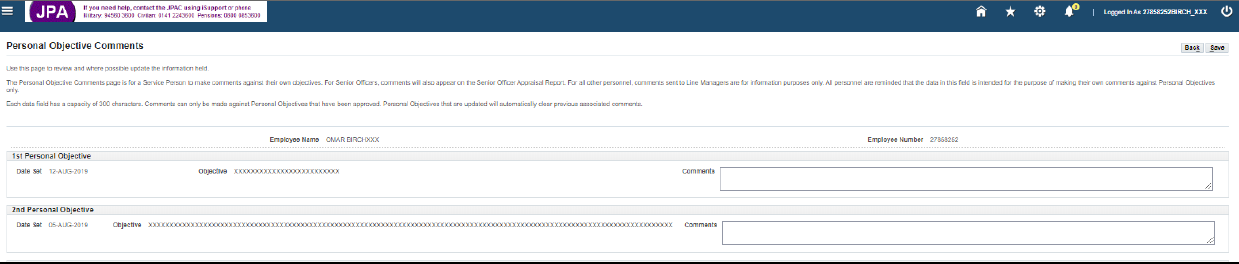
- enter and review comments into the Personal Objective Comments field
- click Save
A warning message will appear asking if comments are to be saved and for a notification to be sent to the Line Manager.
- click Yes
A confirmation message will appear.
- click OK
