Working arrangements can be adapted to meet your needs in some roles, whether it’s having time to pick the children up from school, being able to work from home or working full-time hours over fewer days, freeing up time for other things.
What you need to do
Please see instructions below on how to carry out different flexible working requests.
Many data fields on JPA are entered in free-text format and are not subject to validation. You should be aware that data from these fields is subject to extraction and reporting, and it is imperative that the fields should only be used for their intended purpose. You should also be attentive of the content of the data being entered and remain alert to the fact that it may be viewed by other personnel. Inappropriate use may result in the release of inappropriate data to individuals or organisations and has the potential to cause embarrassment to other Users and the MOD.
What you need to do
logon to JPA
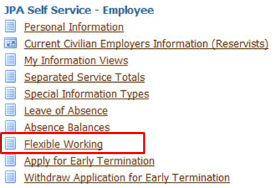
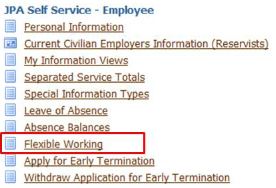
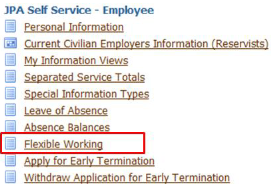
navigate to JPA Self Service - Employee, Armed Forces > Flexible Working
click Apply
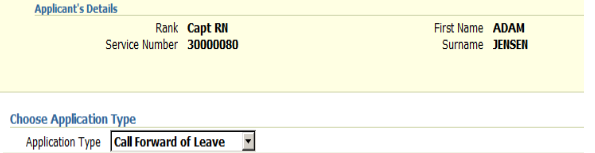
click on Application Type List Of Values (LoV)
enter Number of Days Requested
enter Reason For Request
enter Justification
check Applicant Agreement box - This confirms your compliance with the regulations set out as per JSP 760
click Next
the ‘Confirmation’ screen is displayed
click Submit
What you need to do
Please note: You must have previously linked your JPA record to your Spouses or Partners record via HR, to ensure this application does not error.
logon to JPA
navigate to JPA Self Service - Employee, Armed Forces > Flexible Working
click Apply
click on Application Type List Of Values (LoV)
select Transfer of Leave
enter Number of Days Requested
enter Reason For Request
enter Justification
check Applicant Agreement box - This confirms your compliance with the regulations set out as per JSP 760
click submit
the Confirmation screen is displayed
The request is work flowed to your Line manager. Upon approval, work flowed to your spouse for JPA action.
What you need to do
logon to JPA
navigate to JPA Self Service - Employee, Armed Forces > Workflow Notification
select workflow item
click View Application
click on Does the Spouse Agree to the Terms and Conditions List of Values (LoV)
select Yes
click Submit
the Confirmation screen is displayed
To cancel, the process is reversed. The receiving spouse should make a new application as the donor.
What you need to do
logon to JPA
navigate: JPA Self Service - Employee, Armed Forces > Flexible Working
click Apply
click on Application Type List Of Values (LoV)
select Variable Start and Finish, Compressed Working
enter Start and End Dates
select Reason for Request
input Justification
click Submit
the ‘Confirmation’ screen is displayed
What you need to do
logon to JPA
navigate to JPA Self Service -Employee, Armed Forces > Flexible Working
click Apply
click on Application Type List Of Values (LoV)
select Variable Start and Finish, Remote Working
enter Start and End Dates
select Reason for Request
input Details of Flexible Working Arrangement - please read guidance
click Submit
the ‘Confirmation’ screen is displayed
What you need to do
logon to JPA
navigate to JPA Self Service - Employee, Armed Forces > Flexible Working
click Apply
click on Application Type List Of Values (LoV)
select Enhanced Leave, Career Intermission or Unpaid Leave
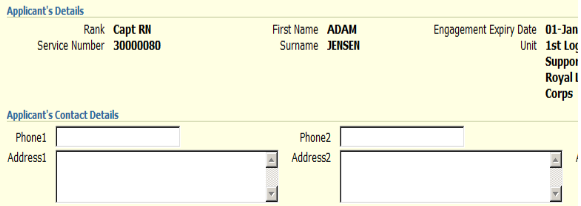
input Phone and Address detail - 1st is mandatory, 2nd and 3rd Optional
enter Start and End Dates
select Calculate Days
for Career Intermission only - Select Yes or No, on Intent to Extend Service
for Career Intermission only - Input Personal and Professional al Benefit of CI, Is your application dependent on another person’s successful application– if so whom and why, Is your application time critical
select Reason for Request
input Justification
check Applicant Agreement box - this confirms your compliance with the regulations set out as per JSP 760
click Next
the ‘Confirmation’ screen is displayed
click Submit
This task does not apply to Transfer of Leave (above).
What you need to do
logon to JPA
navigate to JPA Self Service -Employee, Armed Forces > Flexible Working
select Radio button to select application for cancellation
We use cookies to collect information about how you use this website. We use this information to make the website work as well as possible. Tell us whether you accept these cookies.