What you need to know
You may want to add or update your Preferences, Volunteering Options and Career Aspirations on JPA so they appear on your Appraisal Report.
What you need to do
To add or update your Preferences:
- logon to JPA and select JPA Self Service – Employee, Armed Forces > JPA Next Gen Home Page
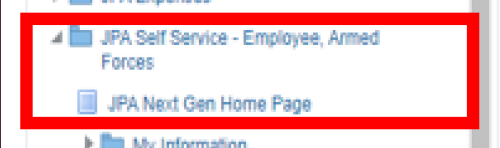
- click the View and Edit button within the Career Aspirations box contained in the My Career dashboard tile
- add and/or Amend an Employee Preference by selecting the preferred radio button and entering the intended option from the drop-down menus

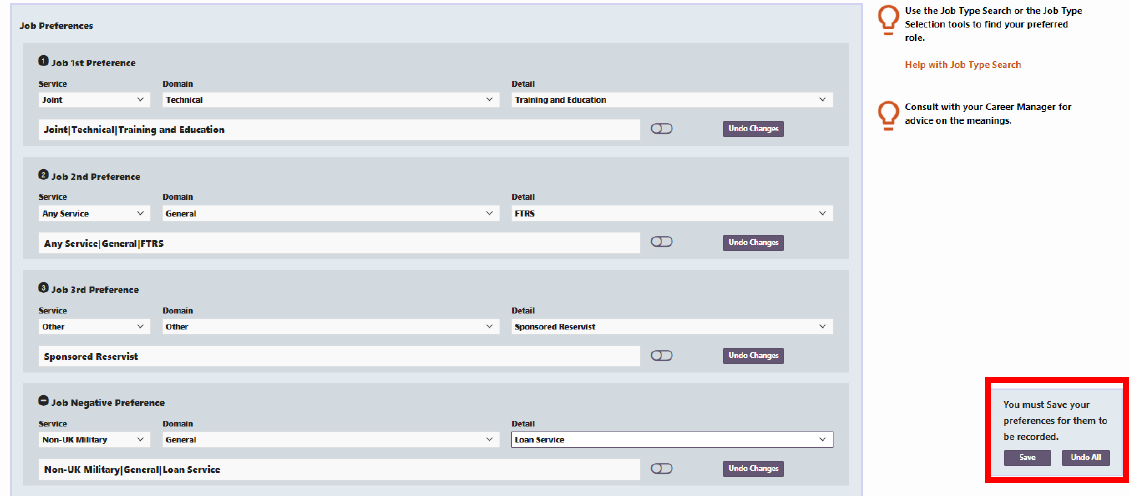
You may wish to save your changes at this stage, or you may want to complete the whole Employee Preferences page before doing so. Selecting Save will send a notification workflow to your Line Manager. No approval action is required. Selecting Undo All will undo all actions made in the last phase of editing.
- if selecting Save, a pop-out window will appear asking whether you would like to make comments to your Approver (Line Manager)
You do not have to make comments.
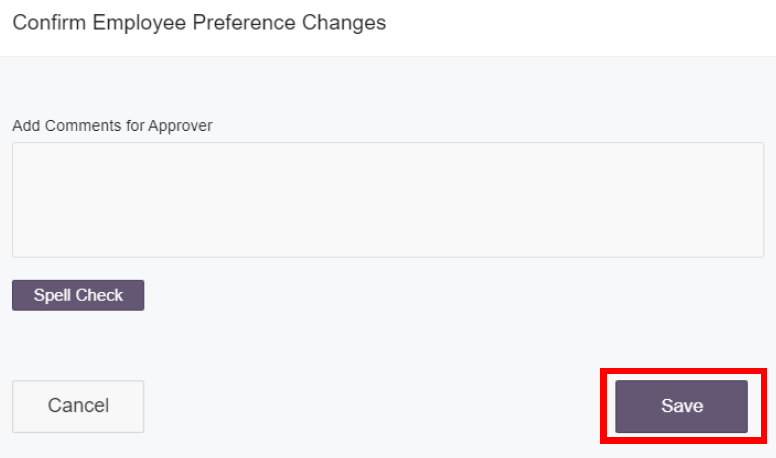
- select Save when you are satisfied with the information you have entered
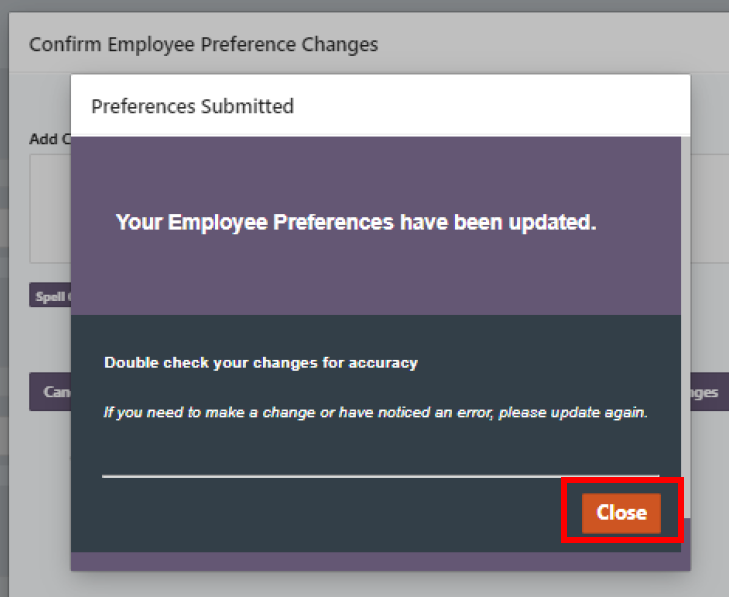
The Confirmation screen will be displayed. Select Close to return to the Employee Preferences screen.
If an error message is received, inform your Unit HR Admin.
To add and/or amend Volunteering Options and Career Comments:
- logon to JPA and select JPA Self Service – Employee, Armed Forces > JPA Next Gen Home Page
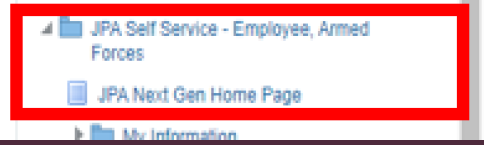
- click the View and Edit button within the Career Aspirations box contained in the My Career dashboard tile
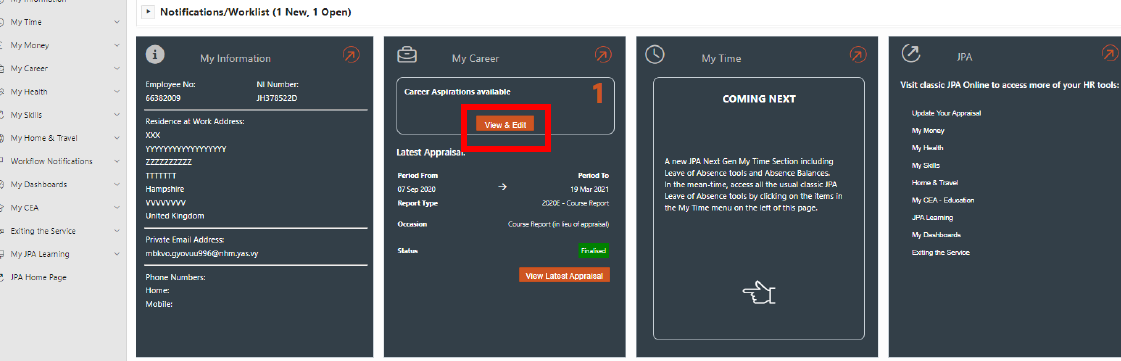
- add and/or Amend Volunteering Options and Career Comments by selecting a preference from the drop-down menus and entering text in the comments boxes
You can add up to four comments.
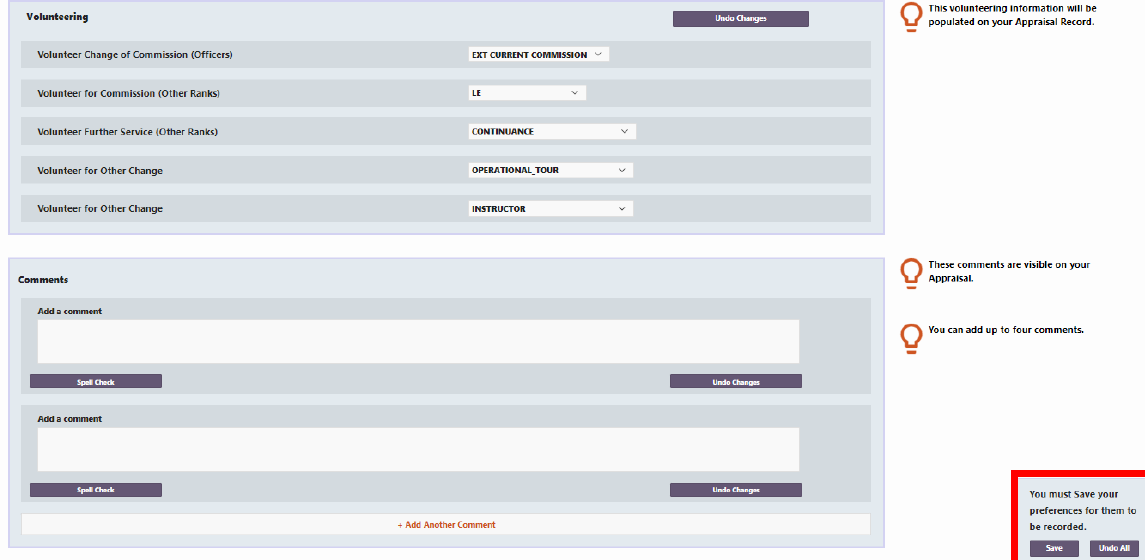
You may wish to save your changes at this stage, or you may want to complete the whole Employee Preferences page before doing so. Selecting Save will send a notification workflow to your Line Manager. No approval action is required. Selecting Undo All will undo all actions made in the last phase of editing.
- if selecting Save, a pop-out window will appear asking whether you would like to make comments to your Approver (Line Manager)
You do not have to make comments.
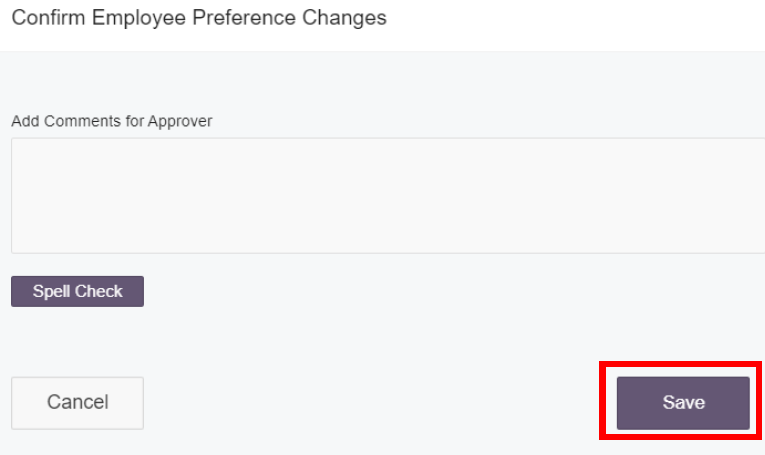
- select Save when you are satisfied with the information you have entered
To add and/or amend Career Aspirations:
- logon to JPA and select JPA Self Service – Employee, Armed Forces > JPA Next Gen Home Page

- click the View and Edit button within the Career Aspirations box contained in the My Career dashboard tile
- add and/or Amend Career Aspirations by entering text in the Career Aspirations boxes and selecting a preference for Reserve Service from the drop-down menus
You can add up to four Career Aspirations.

You may wish to save your changes at this stage, or you may want to complete the whole Employee Preferences page before doing so. Selecting Save will send a notification workflow to your Line Manager. No approval action is required. Selecting Undo All will undo all actions made in the last phase of editing.
- if selecting Save, a pop-out window will appear asking whether you would like to make comments to your Approver (Line Manager)
You do not have to make comments.
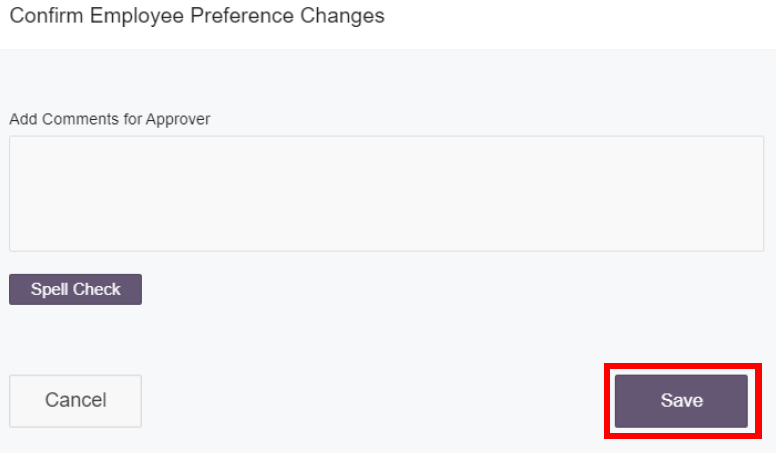
- select Save when you are satisfied with the information you have entered

The Confirmation screen will be displayed.
- select Close to return to the Employee Preferences screen
If an error message is received, inform your Unit HR Admin.
