alpha This is a new service - your feedback will help us to improve it...

  1. Make a positive impact with the Climate friendly switcher.
    Save energy and conserve bandwidth for faster browsing.
    Click here to see more
  2. Home
  3. Contact Us
  4. Search
Contact Us
  1. Personal and Life Changes
  2. Personal Information & Skills
  3. Family Information and entitlements
  4. Service Records
  5. Flexible Service
  6. Accommodation
  1. Absence, Health and Wellbeing
  2. Time Off
  3. Parenthood
  4. Health
  5. Welfare support
  6. Flexible Working
  1. Updating contacts
  2. Emergency contact details
  3. Next of Kin
  1. Pay, Allowances and Charges
  2. About pay
  3. Allowances
  4. Expenses
  1. Benefits
  2. Your Armed Forces Pension
  3. Armed Forces Compensation Scheme
  4. Armed Forces Service Benefits
  1. Career
  2. Learning & Development
  3. Job related information
  4. Medals and Badges
  5. Reserves
  6. ID Cards
  1. Leaving the service
  2. Planning to leave
  3. Early termination
  4. Termination
  5. Resettlement
  6. Support for leaving the service
  7. P45
  1. System and Support
  2. Portal Support
  3. JPA Support
  4. Service Updates and Operational Bullletins
  1. FAQs
  2. Personal and Life Changes FAQs
  3. Absence, Health and Wellbeing FAQs
  4. Pay, Allowances and Charges FAQs
  5. Benefits FAQs
  6. Career FAQs
  7. Leaving the service FAQs
  8. System and Support FAQs
  1. Guidance and Forms
  2. Policy information
  3. Forms
  1. pizza

Updating contacts

  1. Home
  2. Updating contacts

Defence Business Services

  • Resources
  • Personal and Life Changes
  • Absence, Health and Wellbeing
  • Updating contacts
  • Pay, Allowances and Charges
  • Benefits
  • Career
  • Leaving the service
  • System and Support
  • FAQs
  • Guidance and Forms
  • ----- old content -----
  • Documents
  • FAQ
  • Szymon Smoke Testing
  • pizza

What you need to know

Within the Personal Information - Contacts section on JPA you can Add, Update and Remove a Contact.

You can have as many Contacts as you wish, but only one of these can be your Emergency Contact. The individual selected as the Emergency Contact will automatically be designated as your Primary Contact.

If the contact which you wish to add is a serving member of the HM Forces, either Regular or Reserve Forces, then you should contact your Unit HR Admin.

If you have a Defence Gateway account you can do this from your own personal device on the MyDetails app (part of the My Series).

What you need to do

To add a new contact within JPA, you will need to:

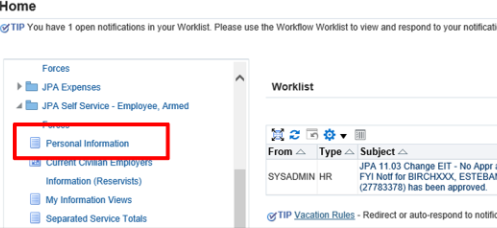
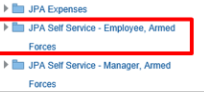
  • logon to JPA and select JPA Self-Service Employee, Armed Forces
  • select Personal Information

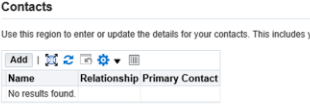
  • scroll down to the Contacts section
  • this section will contain any records you may have previously added
  • click Add

The Dependent and Beneficiary: Create screen will be displayed. In this screen you can enter General Information about your contact such as Name, Relationship etc, and whether they are your Next of Kin (NoK). A Long Tip is present, this will provide you with general advice about who your Legal Next of Kin should be, further information can be obtained from your Unit HR Admin. You will also be able to enter their Main Address and Phone Numbers.

Please Note: Do not use any of the Relationship Fields in the Relationship Drop Down Menu, that start with pensions. To nominate pension contacts use the correct JPA Pension Form.

  • enter your details in the fields provided

Additional Nominee is an individual in addition to your Emergency Contact who you wish to be informed in the event of an Emergency.

An additional mandatory field now appears regarding whether you wish this Contact to be provided with communications from the Service Welfare Orgs. An explanatory note regarding this can be found on the Personal Information screen.

  • click Next

The ‘Personal Information: Review’ screen will be displayed.

Check the information thoroughly and ensure it is correct. It is vital that Contact Information is accurate and kept up to date at all times.

NOTE: Do not add a Child Contact that may have previously been recorded in your Contact Details; the details will still be available in your JPA record and can be re-instated by your Unit HR Admin. You are required to inform your Unit HR Admin if you wish to add a child contact as it may affect your entitlement to allowances.
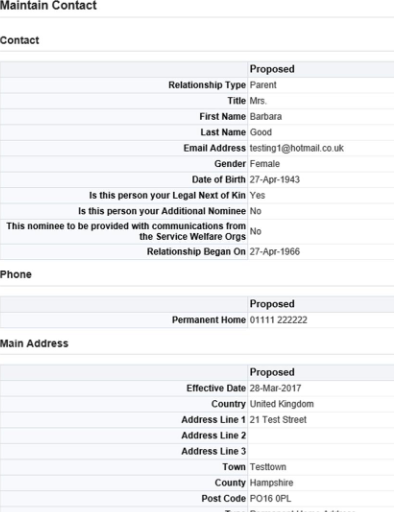
You will be able to see the information you are about to submit. If you realise that you have made a mistake you can click the Back button and make changes. If you do not want to keep the information click the Cancel button.

Click Submit and the 'Confirmation’ screen will be displayed and a message will state that your changes have been applied. When you return to the Personal Information page, the new Contacts will be displayed in the Contacts area.
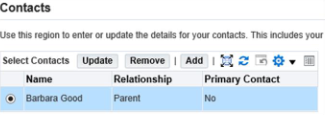
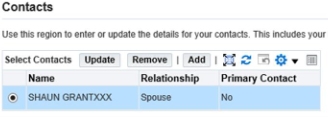
What you need to do

To update an existing contact you will need to:

  • click the relevant button next to the name of the contact you want to update
  • click Update

You can update any of the existing Contact’s details with the exception of a child's birthday. Should it need amending then contact your Unit HR Admin.

  • enter your updated information
  • click Next

The ‘Personal Information: Review’ screen will be displayed and any changes will be indicated by a small blue dot icon.

You will be able to see the information you are about to submit. If you realise that you have made a mistake you can click the Back button and make changes. If you do not want to keep the information you have changed, click the Cancel button.

Click Submit and a ‘Confirmation’ screen will be displayed and a message will state that your changes have been applied.

What you need to do

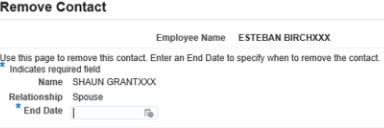
  • click the relevant button next to the name of the contact you want to remove

  • click Remove
  • the Remove Contact screen will be displayed

  • enter the date that the contact ceased to be your contact in the End Date field
  • click Next

Please note: You are to inform your Unit HR Admin in the event of removing a Child Contact; it may affect your entitlement to allowances and avoid a large belated debit from your salary.

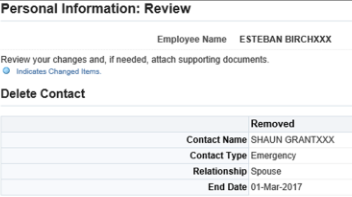
The ‘Personal Information: Review’ screen will be displayed.

Select Submit and then click Return to Overview.

Emergency contact details

Guidance on how to add, update and delete emergency contact details within JPA.

Next of Kin

Guidance on how to update and add Next of Kin information on JPA.


Related Content

  • MyDetails

Did you find this page useful?

Like sign Dislike sign

Your vote is submitting…

Your opinion is submitting…

Thank you for submitting your opinion.

Back to top
Defence Business Services Logo
  • Contact Us
  • Privacy notice
  • Site Map
  • Accessibility statement
  • Cookies statement
Powered by SSCL logo
Coat Of Arms

All content is available under the Open Government Licence v3.0, except where otherwise stated.

We use cookies to collect information about how you use this website. We use this information to make the website work as well as possible. Tell us whether you accept these cookies.

Set cookie preferences