What you need to know
Defence recognises that Service parents face additional difficulties when trying to access good quality, affordable childcare for their children. The Wraparound Childcare (WAC) scheme is designed to assist working families with the cost of before and after school childcare and to allow partners to get back into work (or work more hours). WAC funding will be available to all eligible Service families.
You will be able to claim up to 20 hours of WAC funding per week for each child during term time.
The childcare provider may be run by private companies, nurseries, schools, sports and youth clubs or voluntary organisations such as charities but excludes all types of informal childcare such as grandparents, friends and babysitters. Providers must be located in the UK. All providers must be OFSTED registered (or equivalent) and accept TFC payments.
Disabled children who are in receipt of Disability Living Allowance, Personal Independence Payment, Armed Forces Independence Payment, or are certified as blind or severely sight-impaired, may be able to claim double the amount of funding.
Foster children are not eligible for WAC funding.
What you need to do
To benefit from the WAC scheme, please complete the below 5 steps in order:
What you need to know
When there is a change to the number of eligible children you have, you need to update the child(ren)'s details on JPA.
You will need to enter the date the child becomes a legitimate or legitimated child (see JSP 752, 02.0110 refers), such as date of birth, date of adoption or date of marriage, where the spouse has a child. If you need to remove a child's details from JPA you will need to enter the date the child ceases to be a legitimate or legitimated child such as date of death, placement failure, date an entitled child is given up for adoption or divorce (where spouse has a child prior to marriage).
What you need to do
To record a child on JPA you need to complete the JPA N005 Declaration of Child's details form and pass to your Unit HR Admin.
Your Unit HR Admin will add the child's details to JPA and let you know once this has been done. You will need to go into JPA Self-Service and record the child's address details:
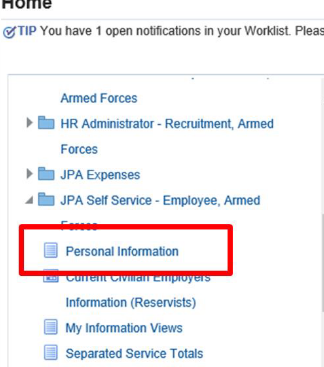
- logon to JPA and select JPA Self Service – Employee, Armed Forces
- select Personal Information
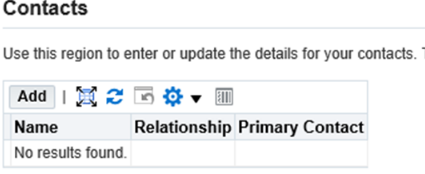
- scroll down to the Contacts section
This will contain any records you may have previously added.
- click Add
The Dependent and Beneficiary: Create screen will be displayed. In this screen you can enter General Information about your contact such as Name, Relationship etc, you will also be able to enter their Main Address and Phone Numbers.
Important Note: Do not use ANY of the Relationship Fields in the Relationship Drop Down Menu, that start with PENSIONS.
- enter your details in the fields provided
- click Next
The ‘Personal Information: Review’ screen will be displayed. Check the information thoroughly and ensure it is correct. It is vital that Contact Information is accurate and kept up to date at all times. You will be able to see the information you are about to submit. If you realise that you have made a mistake you can click the Back button and make changes. If you do not want to keep the information click the Cancel button.

Do not add a Child Contact that may have previously been recorded in your Contact Details; the details will still be available in your JPA record and can be re-instated by your Unit HR Admin.
The ‘Confirmation’ screen will be displayed and a message will state that your changes have been applied.

When you return to the Personal Information page, the new Contacts will be displayed in the Contacts area.
To update an existing contact:
- click the relevant button next to the name of the contact you want to update
- click Update
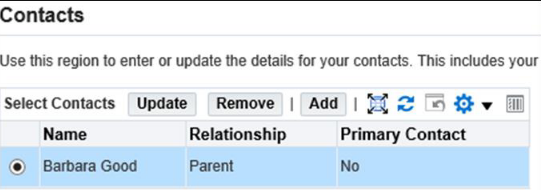
You can update any of the existing Contact’s details with the exception of a child's birthday. Should it need amending then contact your Unit HR Admin.
- enter your updated information
- click Next
The ‘Personal Information: Review’ screen will be displayed and any changes will be indicated by a small blue dot icon. You will be able to see the information you are about to submit. If you realise that you have made a mistake you can click the Back button and make changes. If you do not want to keep the information you have changed, click the Cancel button.
- click Submit
A ‘Confirmation’ screen will be displayed and a message will state that your changes have been applied.
To remove a contact
- click the relevant button next to the name of the contact you want to remove
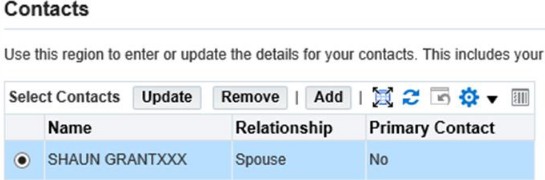
- click Remove
The ‘Remove Contact’ screen will be displayed.
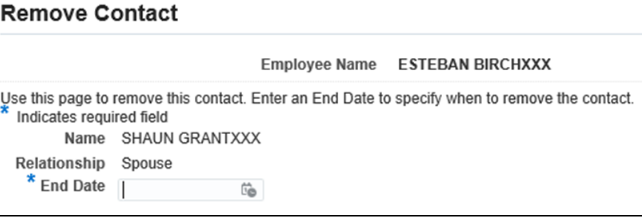
- enter the date that the contact ceased to be your contact in the End Date field
- click Next
NOTE: You are to inform your Unit HR in the event of removing a Child Contact as it may affect your entitlement to allowances and avoid a large belated debit from your salary.
The ‘Personal Information: Review’ screen will be displayed.
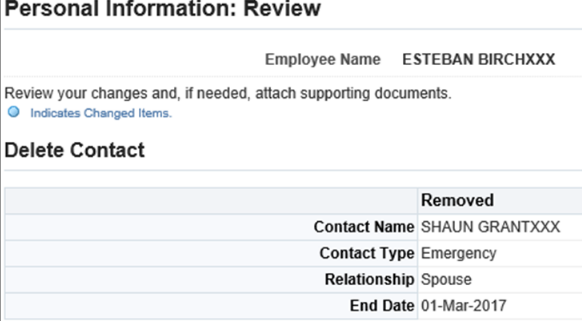
- click Submit
- click Return to Overview
Check:
- if you meet the WAC Eligibility flowchart
- if your family will financially benefit from having a Tax-Free Childcare (TFC) account OR a salary sacrifice childcare voucher scheme. You cannot have both at the same time. To make an informed decision about which scheme suits you best, you can use the childcare calculator on GOV.UK (the ‘How to claim’ flowchart has details of the 20% HMRC and 80% WAC funding breakdown)
- how your tax allowances and brackets can be affected using the ‘Grossing up’ information
If your family is eligible and you choose to claim WAC funding, apply for a Tax Free Childcare (TFC) account for each child on GOV.UK. Wait until the TFC account is activated and you have your account number.
Register each child by completing the JPA F028 Wraparound childcare registration form Registration form (Defnet access required) or Defence Connect (personnel only).
To do this you must firstly:
- read the Eligibility Criteria, select ‘Yes’ from the dropdown box to confirm you believe you are eligible
- read the Privacy Statement, select ‘Yes’ from the dropdown box to confirm you accept the handling caveats
Then select the 'Form' tab at the bottom of the form and enter your:
- Service personal details:
- service number
- full name
- service
- nato rank
- contact email address (this must be either a ModNet eMail address or one provided by Defence Gateway)
- parent UIN – available from your Admin Office if unknown
- duty station location – country and area (for example UK, GOSPORT) – In accordance with JSP 752, Para 02.0114
- Service child details:
- date of birth
- full name (must match the name recorded on JPA)
- tax-free childcare account number (13 digit number commencing with 1100, this is called the payment reference within emails from HMRC)
- for those unable to use the HMRC web-provision and have not been issued a tax-free childcare account number / payment reference, please attach a copy of the ‘payment confirmation letter’ from HMRC to your registration form
- if the child is in receipt of a disability allowance, supporting documentation will be required to confirm allowances are paid (guidance is available within the DIN)
- Enter 1st WAC provider details (2nd and 3rd if applicable):
- provider name
- provider type, either school childcare setting or childminder
- childcare country
- childcare region (England only)
- childcare local authority (England only)
- Read the declaration, if content to proceed, type your name in the Signature of Applicant field and check the checkbox
- Enter today’s date into the Date of Registration field
- Read part 4 – Affirmations, select ‘Yes’ from the dropdown box to confirm you accept the statements listed
Important: All WAC registration forms must be sent as an attachment (i.e. not a SharePoint link) to DBS-JPAC-WAChildcare-Mailbox@dbspv.mod.uk.
DBS JPAC will confirm receipt of your registration form. If you do not receive an automated response within 10 minutes, the form has not been received – please try again.
Within 10 days DBS will confirm:
- if you are eligible and where appropriate issue you a registration number
- if the child is eligible for the disabled rate of Wrap around Childcare
You can then proceed to step 5.
Claim WAC funding from 1 September 2022 by following these steps (also available in the ‘How to claim’ flowchart):
- Pay your childcare provider(s) from your child’s Tax-Free Childcare (TFC) Account
- Complete the online Claims calculator using the information from the invoice. You will need the invoice reference number, invoice date, provider type, provider region, number of children on the invoice, total number of hours, number of days and know how many hours, if appropriate, relate to disabled child(ren). Note: You can claim up to 20 hours per week, per child. Hours can be aggregated per family
- Claims calculator: The amount shown on the calculator will be 80% of the total claimable. The remaining 20% will be topped up by HMRC when you add the funding to your TFC Account
- Fill in JPA iExpenses: Enter the calculator amount into JPA via iExpenses - it will be paid within five working days
To create an iExpense claim (the Expense Help button is available throughout the Expense process, should you require assistance):
- Create new iExpenses Claim in JPA:
- logon to JPA
- click JPA Expenses
- click Create New Expense Claim
- Populate the General Information screen:
- change the Type of Claim to Wraparound Childcare-Int
- enter the authority and period claiming into the Authority field. For example: 022DIN-01-079 –WAC –Sep 2022
- ensure ‘Have you been told to use a UIN other than your own Unit? Remains as ‘No’
- ensure ‘Select Your New UIN/ORG’ remains blank
- if you have completed all steps above, you may change the ‘Do You Have the Authority of the Budget Holder?’ drop-down box to ‘Yes’
- click Next
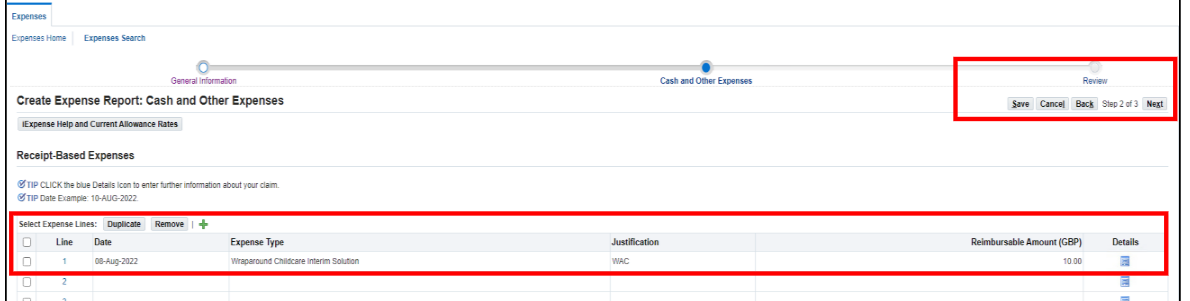
- Populate the Cash and Other Expenses screen:
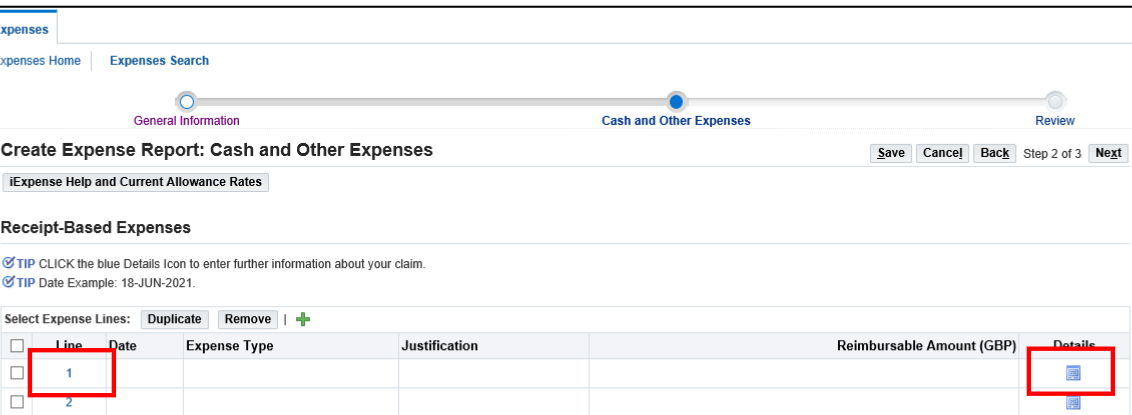
- click either the line number or the blue square to enter an expense line
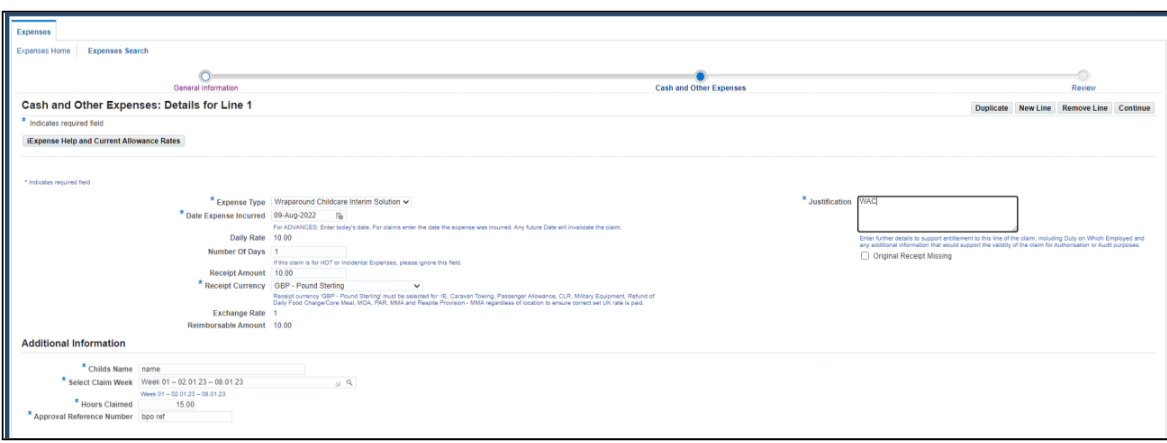
- select Wraparound Childcare Interim Solution from the Expense Type drop down box
- enter the date of the Childcare invoice into the Date Expense Incurred field
- enter the amount provided by the claims calculator
- populate the Justification field with the invoice number (invoice number is provided by the supplier claimants are to use the child’s initials, the month and the year–for example EWSEP22)
- enter the Additional Information fields:
- child’s full name
- claim week (from list)
- hours claimed
- approval reference number (WAC reference number provided in the registration process)
- click Continue
- Review claim line(s):
- check details presented on each claim line
- once content click Next
- Submit expense claim:
- review detail of the Expense Claim
- once content with the claim contents, read the Terms and Conditions and if acceptable click the I accept the Terms and Condition of the MOD’s Travel and Expense Policies
- click submit
If you have a Defence Gateway account you can submit expenses from your own personal device on the MyExpenses app (part of the My Series).
5. Once iExpense claim has been submitted, you can use your payment, to pay your next invoice. When you have received the funding into your personal bank account, to pay your provider for your next invoice you must: a. Transfer the funding from your personal bank account into your TFC Account. This can take up to 24 hours to be loaded into the TFC Account. b. When the personal bank transfer has been added to the TFC Account, TFC will automatically add the 20% top up
6. Pay your next invoice from your TFC Account. You pay your provider for your next invoice from the TFC Account. Payments to childcare providers will take a further three days to arrive in their account
7. Your pay statement will show the WAC amount claimed that month and a ‘grossed up’ amount. This is the amount that the MOD will pay to cover the Tax and National Insurance liability resulting from the WAC payment
