What you need to know
When there is a change to the number of eligible children you have, you need to update the child(ren)'s details on JPA.
You will need to enter the date the child becomes a legitimate or legitimated child (see JSP 752, 02.0110 refers), such as date of birth, date of adoption or date of marriage, where the spouse has a child. If you need to remove a child's details from JPA you will need to enter the date the child ceases to be a legitimate or legitimated child such as date of death, placement failure, date an entitled child is given up for adoption or divorce (where spouse has a child prior to marriage).
What you need to do
To record a child on JPA you need to complete the JPA N005 Declaration of Child's details form and pass to your Unit HR Admin.
Your Unit HR Admin will add the child's details to JPA and let you know once this has been done. You will need to go into JPA Self-Service and record the child's address details:
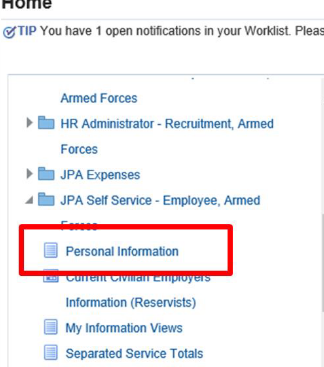
- logon to JPA and select JPA Self Service – Employee, Armed Forces
- select Personal Information
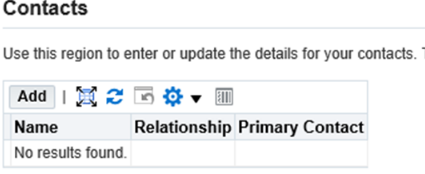
- scroll down to the Contacts section
This will contain any records you may have previously added.
- click Add
The Dependent and Beneficiary: Create screen will be displayed. In this screen you can enter General Information about your contact such as Name, Relationship etc, you will also be able to enter their Main Address and Phone Numbers.
Important Note: Do not use ANY of the Relationship Fields in the Relationship Drop Down Menu, that start with PENSIONS.
- enter your details in the fields provided
- click Next
The ‘Personal Information: Review’ screen will be displayed. Check the information thoroughly and ensure it is correct. It is vital that Contact Information is accurate and kept up to date at all times. You will be able to see the information you are about to submit. If you realise that you have made a mistake you can click the Back button and make changes. If you do not want to keep the information click the Cancel button.

Do not add a Child Contact that may have previously been recorded in your Contact Details; the details will still be available in your JPA record and can be re-instated by your Unit HR Admin.
The ‘Confirmation’ screen will be displayed and a message will state that your changes have been applied.
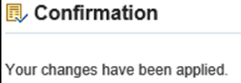
When you return to the Personal Information page, the new Contacts will be displayed in the Contacts area.
To update an existing contact:
- click the relevant button next to the name of the contact you want to update
- click Update
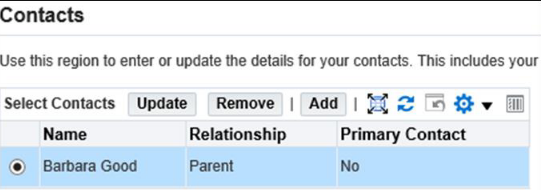
You can update any of the existing Contact’s details with the exception of a child's birthday. Should it need amending then contact your Unit HR Admin.
- enter your updated information
- click Next
The ‘Personal Information: Review’ screen will be displayed and any changes will be indicated by a small blue dot icon. You will be able to see the information you are about to submit. If you realise that you have made a mistake you can click the Back button and make changes. If you do not want to keep the information you have changed, click the Cancel button.
- click Submit
A ‘Confirmation’ screen will be displayed and a message will state that your changes have been applied.
To remove a contact
- click the relevant button next to the name of the contact you want to remove
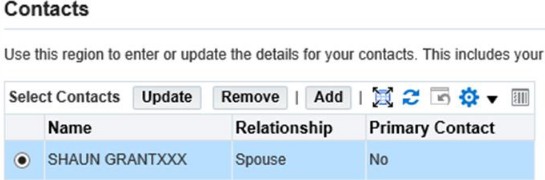
- click Remove
The ‘Remove Contact’ screen will be displayed.
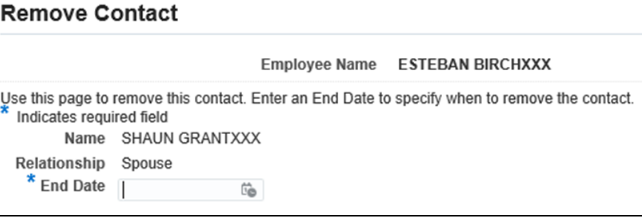
- enter the date that the contact ceased to be your contact in the End Date field
- click Next
NOTE: You are to inform your Unit HR in the event of removing a Child Contact as it may affect your entitlement to allowances and avoid a large belated debit from your salary.
The ‘Personal Information: Review’ screen will be displayed.
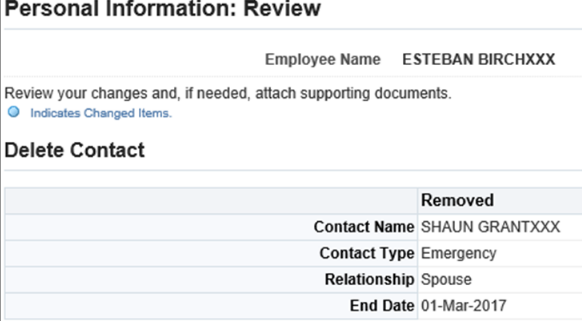
- click Submit
- click Return to Overview
