What you need to know
Your pay statement is available to view on JPA immediately following the monthly and supplementary pay runs.
Hard copy pay statements are not available.
Your P11D is an end of year expenses and benefits statement that includes details of any 'benefits in kind' that are over £10,000.
P11Ds for 2021-2022 onwards are published on JPA for you to view and print. These electronic documents will be accepted as a formal statement of your expenses and benefits in the same manner as if a hard copy statement was provided.
Your P60 will show the tax you have paid on your salary in the tax year. You will need a P60 to:
- claim back overpaid tax
- apply for tax credits
- apply for a loan or mortgage as proof of your income
Since 2021/2022 P60s are no longer posted to you. You will receive your P60 electronically on JPA by 31 May.
What you need to do
- log into JPA
- navigate to JPA Self Service - Employee, Armed Forces > Payslip
- the ‘Payslip’ screen will appear

- select a pay period in the Choose a Payslip field
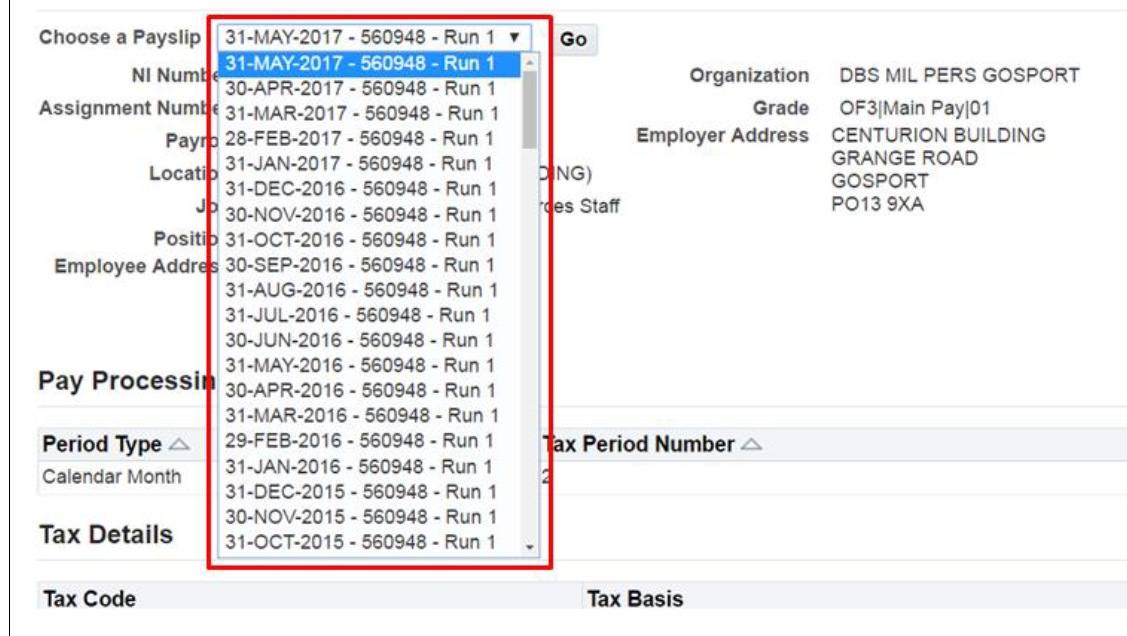
- click Go
- the chosen Payslip will be displayed
- scroll down the screen to view all the available information
- or select correct PDF icon
If you have a Defence Gateway account you can access this from your own personal device on the MyPay app (part of the My Series).
- log into JPA
- navigate to JPA Self Service - Employee, Armed Forces > Payroll Information > P11d
- select the P11D you require to view or print
- log into JPA
- navigate to JPA Self Service - Employee, Armed Forces > Payroll Information > P60
- select the P60 you require to view or print
If you have a Defence Gateway account you can access this from your own personal device on the MyPay app (part of the My Series).
If you require a copy of a P60 before the tax year 2021/2021, you will need to contact the Enquiry Centre who will print and post or email it to you.
Payslip explanation notes
Image of a payslip

Employee Name & Employee Number - Previously known as your Service number.
Choose a Pay Slip - Allows you to look back at previous pay slips.
Paid Rank – The rank at which the SP is being paid.
This is your National Insurance (NI) Number. This is a unique reference issued by HM Revenue and Customs to ensure NI contributions are recorded correctly, you can also use this to identify yourself to the JPAC enquiry centre if you forget your memorable data.
Assignment Number - This will show your Employee (Service) Number.
Location – Geographical location of the SP’s Organisation.
Employee Address - This is your primary address on JPA, normally your Residence at Work Address (i.e. the place you normally travel to work from) or your permanent home address.
Organisation - This is the name of the Unit where you are working.
Grade - This shows your Pay Grade as in OR1 and any special scale you are on.
Level – Step of your Pay Scale.
Job - This is the JPA Manage Establishments definition of your role within an Organisation and has no effect on pay.
Position - This is the unique JPA reference to your post - The last 7 numbers define the actual post and are unique (e.g. SO2 POP/1134526).
Payroll - This shows who pay you (Royal Navy, Army or RAF).
Employer Address - This will usually be your Unit address.
Period Type - This tells you how often you are paid (Payroll Frequency) - it will normally say 'Calendar Month'. Under JPA your annual basic pay is split up into 12 equal payments, although allowances are still paid according to the number of days in the month.
Tax Period Number - If you are paid monthly, this will tell you how many times you have been paid in the Tax Year e.g. Tax period 10 will be the pay for January (the 10th month after the beginning of the Tax year which is April).
Tax Period 1 will be the pay you receive at the end of April.
Payment Date - Payment will be due in your bank on this date, usually the last working day of the month.
Tax Code - This is issued by the tax office and specifies how much tax is to be deducted from your income. In essence it is how much you can earn without paying tax and can be different for each individual depending on circumstances. If, for example your Tax Code is shown as 518L it means that you don't pay tax on the first £5,180 you earn, spread out over the year. The tax allowances usually change every year when the new Budget is announced. It is important you check your tax code is correct; otherwise you may pay too much tax. Tax codes preceded by the letter S indicate that the individual’s income or pension is taxed using the rates in Scotland.
This tells you whether your tax is being worked out over the year (cumulative) or on a monthly basis.
NI Category - This tells your employer what category you are for NI purposes and allows the correct value of NI to be calculated each month.
Employer's PAYE Reference Number - You will need this number if you need to contact the Tax Office. It is your unique number and the tax office uses it along with your NI Number to identify you.
Total Gross Pay - This figure is the total amount you would receive without any deductions, and may include your basic pay, Local Overseas Allowance, Get You Home, parachute pay etc and is the value on which Tax and NI are calculated.
Total Deductions - This will be the total amount of statutory, compulsory, and voluntary deductions (money taken off your pay) including such things as Tax, National Insurance, food charges, single accommodation charges etc.
Total Amount Paid - The most important box! This tells you how much money should be going into your bank account on the date specified in para 15.
Payment Description - Below this heading will be listed all the sources of money you are entitled to such as basic pay, Get You Home, specialist pay, Local Overseas Allowance. If you add all these figures up they should add up to the figure under the Total Gross Pay box.
Payments Amount - This gives you the amounts of each category of pay and allowances.
Deductions Description - Below this heading you will have listed all the money which will be taken off your payments. Sometimes you will find a figure with a minus sign next to it. This is referred to as a negative deduction, and thus is a double negative and hence a credit (2 negatives make a positive). In effect it means that the amount that you were going to have deducted from you pay has been reduced by this amount. It is one of JPA's ways of returning money to an individual following overcharging etc.
Deductions Amount - If you add up all the deductions, remembering to take away any minus figures, the total should add up to the figure beneath the Total Deductions box.
Self-service users should be aware that the online pay statement will limit the display of Deductions for those personnel with more than 10 deduction types. For example, if 12 unique deduction types are being applied, only 10 will display, but the total deductions will include any that are not displayed.
If 10 deductions show and the total shown (see para 25 below) is inconsistent with the total that you add up, you should contact the Unit HR Admin who can look at your Statement of Earnings (SOE) to clarify what the extra deductions are.
Net Pay Distribution - NOTE: If you have asked for your pay to be split across more than one bank account (Split of Net Pay) there will be a separate line for each bank account showing the value paid to each.
Payment Method - This tells you how you want the money to be paid - for most people it will be 'UK Main Bank Account'.
Bank Sort Code - This is the unique 6 figure number which banks use to identify specific banks and is used by JPA to determine where to send your money to. You can find it on your cheque book and bank statements.
Bank Account Number - This gives the account number you have given where you want the money to go.
Payment Amount - The amount of money which will go to your bank account at the end of the month.
NOTE: It is up to you to check that all your bank details are correct, and you should also check that the pay amount given above was correctly credited to your account.
Balances Current Period - This contains information on such things as the number of days of Long Separation Allowance or outstanding balances on debts such as Forces Help To Buy, or Recovery of Overpayments etc.
Balances Amount - Level of Balance for current period.
Balances Current Tax Year – Displaying Gross Pay Year To Date (YTD), NIable Pay YTD, PAYE YTD.
Balances Amount - Level of Balance for current tax period.
Element Further Information – Will display if information not already shown on SOE.
Value - Will show if Element further information is populated.
Messages to Employee - This can be used to let you know important information, including information pertaining to your pay etc.
