In the context of Resettlement ‘Post Discharge Contact Details’ refers to the address to be provided to the Career Transition Partnership for resettlement correspondence, during remaining service and post discharge. It may be either a personal address or a ‘care of’ address who will forward any correspondence.
For all purposes other than resettlement, your Permanent Home Address remains the primary field for recording your correspondence address post discharge. The ‘Permanent Home Address’ field is to be updated as part of the Termination process and should not be confused with the Resettlement ‘Post Discharge Contact Details’ field.
What you need to do
To maintain post discharge contact details you need to:
select Post Discharge Contact Details within the Resettlement menu of JPA Self Service–Employee, Armed Forces
You then have a choice of completing the following below processes.
What you need to do
To create new post discharge contact details you need to:
click Add
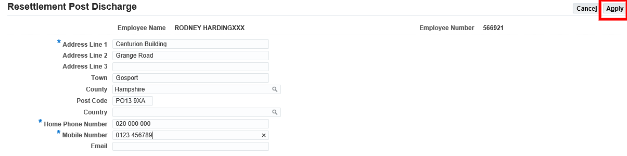
the following screen will be displayed
input Contact Details (*Denotes Mandatory Fields)
click Apply if the details are correct or Cancel if details are incorrect
selecting Cancel will return user to the Post Discharge Contact Details Extra Information form; Selecting Apply will display the below Extra Information Screen.
click Next if the details are correct or Cancel if the details are incorrect
selecting Cancel will return user to a blank Extra Information form; Selecting Apply will display the below Extra Information Screen.
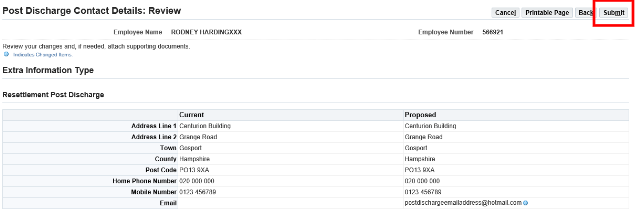
review Details on the Post Discharge Contact Details - Review form
click Submit if details are correct or Cancel if details are incorrect
selecting Cancel will return user to a blank Extra Information form; Selecting Submit will display the below confirmation screen
click Home
Effective 04/09/17Page3of 5Ver 4.0IN520004▪Review Details on the Post Discharge Contact Details-Review form.▪ClickSubmitif details are correct orCancelif detailsare incorrect.Selecting Cancel will return user to a blank Extra Information form; Selecting Submitwill display the below confirmation screen.▪ClickHome.End of activity3.Update Post Discharge Contact Details.▪ClickUpdate.The following screen will be displayed.▪Input Updated Contact Details (*Denotes Mandatory Fields).▪ClickApplyif the details are correct or Cancelif details are incorrect.Selecting Cancel will return user to the current Extra Information form; Selecting Apply will display the below Extra Information Screen with status of ‘Updated’.
What you need to do
To update existing post discharge contact details you need to:
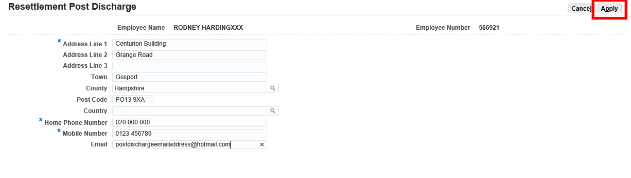
click Apply if the details are correct or Cancel if details are incorrect
selecting Cancel will return user to the current Extra Information form; Selecting Apply will display the below Extra Information Screen with status of ‘Updated
click Next if the details are correct or Cancel if the details are incorrect
selecting Cancel will return user to the existing Extra Information form; Selecting Next will display the below Contact Details Review Screen
review Details on the Post Discharge Contact Details - Review form
click Submit if details are correct or Cancel if details are incorrect
selecting Cancel will return user to the existing Extra Information form; Selecting Submit will display the below confirmation screen
click Home
What you need to do
To delete existing post discharge contact details you need to:
click Delete
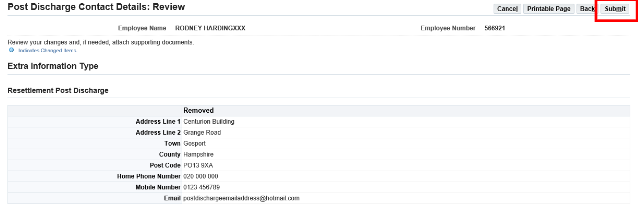
the following screen will be displayed
click Submit to delete Post Discharge Contact Details, or Cancel if you do not want to delete Post Discharge Contact Details
selecting Cancel will return user to the existing Extra Information form; Selecting Submit will display the below confirmation screen
We use cookies to collect information about how you use this website. We use this information to make the website work as well as possible. Tell us whether you accept these cookies.