What you need to know
You are able to view and update your religion information and details on JPA.
What you need to do
To view and change your religion details you need to:
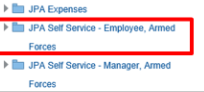
- logon to JPA select JPA Self Service - Employee, Armed Forces
- click Miscellaneous Personal Details link under the Extra Information Types section
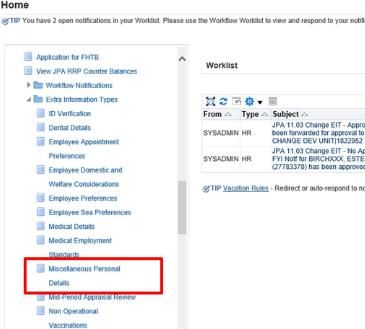
The Miscellaneous Personal Details: Extra Information screen appears showing your religion details held on JPA.

- click the Update button
The Miscellaneous Personal Details screen appears.
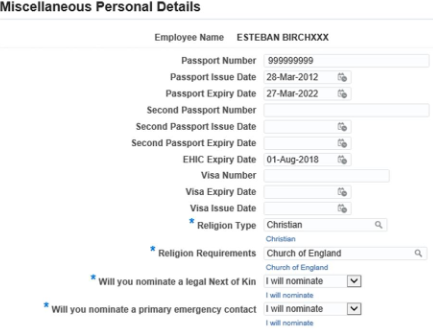
- click the Magnifying Glass icon next to the Religion Type field
- the Search and Select: Religion Type screen appears
- delete the existing religion in the search field and click Go

- results selection will appear showing all religion types available to you
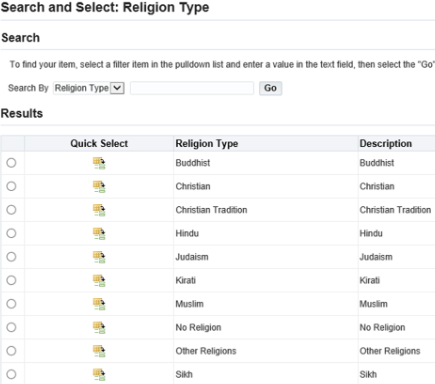
- select your required Religion Type by clicking the appropriate radio button
- click the Select button
The Miscellaneous Personal Details screen will appear showing the change you have made.
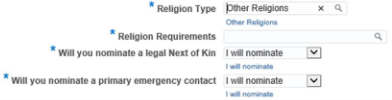
- click the Magnifying Glass icon next to the Religion Requirements field
- delete any existing data in the search field and click Go
- results selection will appear showing all religion requirements available to you

- select your required Religion Requirement by clicking the appropriate radio button
- click the Select button
The Miscellaneous Personal Details screen will appear showing the change you have made.
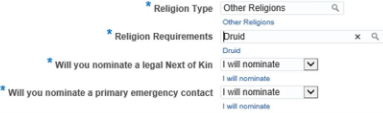
- click Apply
The Miscellaneous Personal Details: Extra Information screen will appear showing the changes you have made.
- click Next
The Miscellaneous Personal Details: Review screen will appear showing the changes you have made (blue dots appear next to the changes).
- click Submit
A confirmation screen appears notifying you that your changes have been made. Clicking the Home button will return you to the home navigation screen.
