What you need to know
You are able to declare or update your sexual orientation information on JPA.
If you have a Defence Gateway account you can do this from your own personal device on the MyDetails app (part of the My Series).
What you need to do
To declare your sexual orientation you need to:
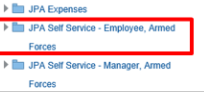
- logon to JPA and select JPA Self Service - Employee, Armed Forces
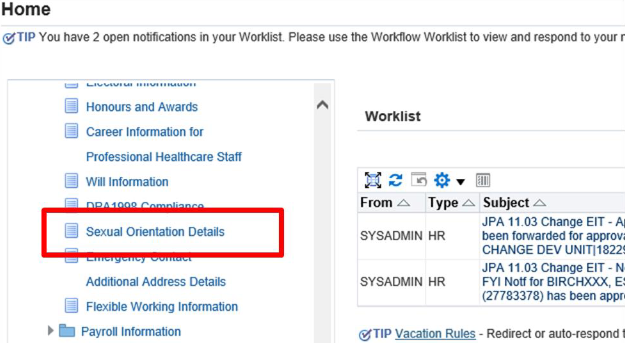
- click on the Sexual Orientation Details link under the Extra Information Types section
The Sexual Orientation Details: Extra Information screen will be displayed.
- this screen will show either no information (if you have not recorded any declaration), or a row of information indicating your current Sexual Orientation Declaration
Add an initial declaration
If required to add an initial declaration, you will need to:
- click Add
The Sexual Orientation Details: Extra Information screen will be displayed.
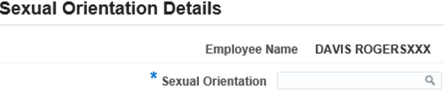
- enter your declarations in the information field - (search and & select guidance page link)
- the options you will be provided with are:
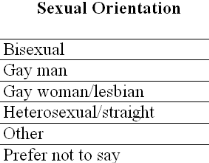
- click Apply
The Sexual Orientation Details: Extra Information screen will be displayed.
- if you have made a mistake or want to change an entry you can click the Back button
- if you decide you do not want to keep the declaration you have made click the Cancel button
- click Next
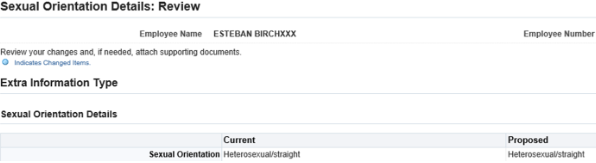
The Sexual Orientation Details: Review screen will be displayed.
- click Submit
Update existing declaration
- click Update
The Sexual Orientation Details screen will be displayed.
- enter your amended declaration in the available fields
- click Apply
The Sexual Orientation Details: Extra Information screen will be displayed.
- if you have made a mistake or want to change an entry you can click the Back button
- if you decide you do not want to keep the declaration you have made click the Cancel button
- click Next
The Sexual Orientation Details: Review screen will be displayed.