What you need to know
If you undertake a temporary duty journey overseas and need to purchase foreign currency or travellers’ cheques to cover your daily expenses, you may incur certain fees and charges. You can use this benefit to claim back these fees and charges provided you suffer a net financial loss from your currency purchase transaction e.g. a claim would not be allowed if you made a £5 gain on purchase of local currency and only incurred a £3 commission charge.
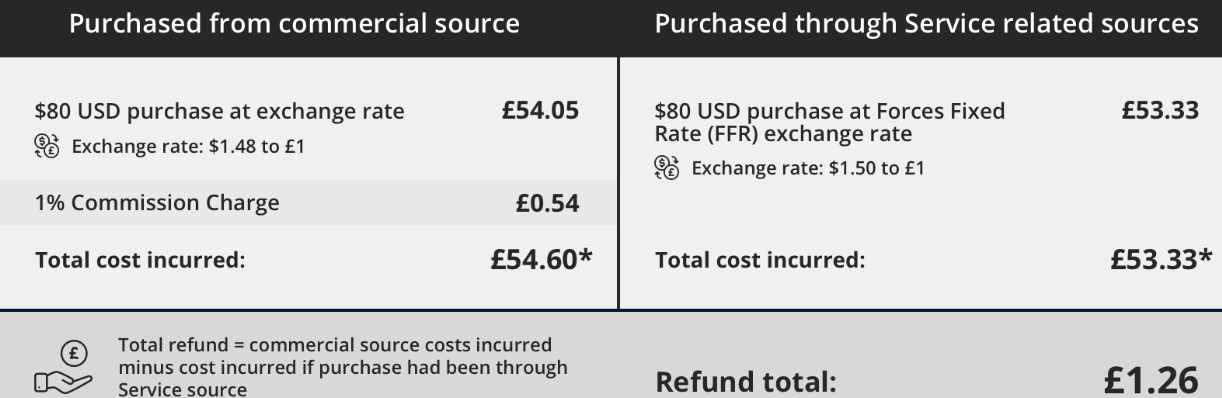
This allowance is available to all servicemen and women undertaking temporary duty journeys overseas.
It is important that you have read and understood JSP 752 Tri-Service Regulations for Expenses and Allowances (chapter 9, section 3) before proceeding.
You can only claim for charges related to the minimum overseas currency necessary for you to meet your daily expenses until you are able to cash a Sterling cheque through local Service facilities at the Forces Fixed Rate of Exchange provided you have a receipt. You will receive your refund in your nominated bank account.
You can not use this benefit if you are able to purchase foreign currency through Service-related sources or if you’re on a permanent overseas assignment.
What you need to do
You can submit your claim via JPA, remember that the iExpense Help button is available throughout should you require assistance:
- logon to JPA
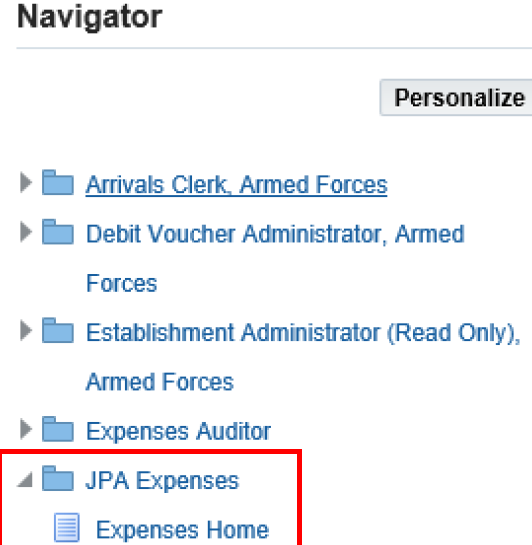
- click JPA Expenses and then Expenses Home
- click Create New Expense Claim
- choose a Reimbursement Currency from the List of Values (LOV)
- select Miscellaneous option for Type of Claim option from the LOV
- enter the Authority for the claim, e.g. Course Joining Instruction details etc
- if claiming against your Unit's identity number (UIN) then click Next
- if claiming against another UIN enter the UIN
- click Details icon at end of line

- the Cash and Other Expenses: Details for Line 1 screen will be displayed
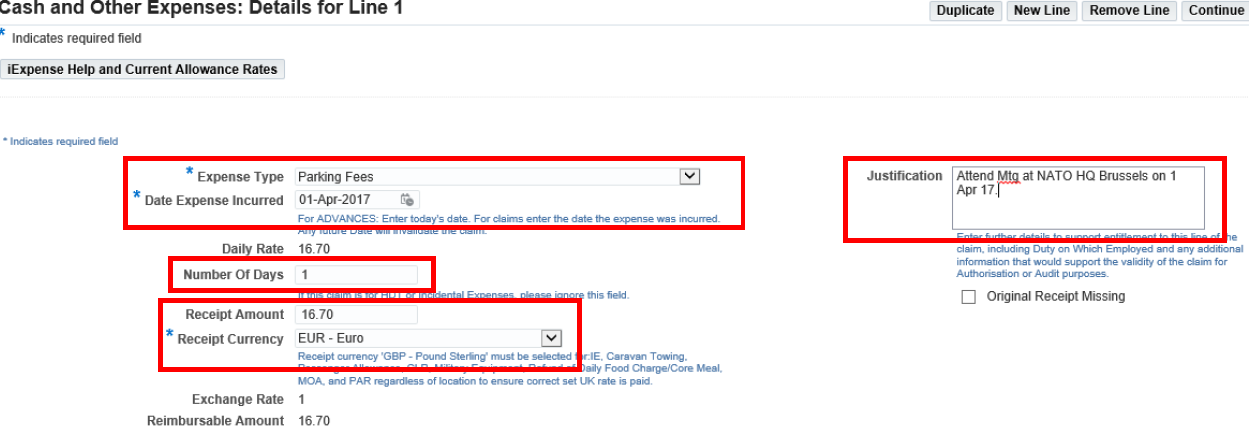
- select Expense Type from LOV e.g. Parking Fees
- when requesting reimbursement of items which only have a set UK (£Sterling) value you will need to select GBP-Pound Sterling as the Receipt Currency regardless of the overseas location - this will ensure you are reimbursed the correct rate for these items
The following items have a set UK (£Sterling) value and will need the receipt currency of GBP-Pound Sterling to be selected: all forms of IE(UK & Overseas), Passenger Allowance, Refund of Daily Food Charge / Core Meal, Meals Out Allowance, and Private Arrangements Rate
- enter Date Expense Incurred
- enter relevant details in the Justification box
- enter Number of Days claimed
- enter Receipt Amount - this box has already been set to GBP, if you need to select a different currency use the drop down list
The example shown above is in Euro's. The screen will refresh when you tab out of this box or when you click in another part of the screen. The exchange rate and the revised reimbursement amount will be displayed.
- click Continue
- you may Save or Cancel you claim at this point, or make amendments by clicking on the Details icon or the Back button
- the Reimbursable Amount has been updated to show the amount to be refunded in the currency you selected at the start of the claim
You can now review and submit the claim as detailed below or insert another (for example a UK Pounds Sterling receipt).
- click the Details icon on the next line (Line 2) to insert a receipt for payment
- select Expense Type from LOV e.g. Taxi Fare
- enter Date Expense Incurred
- enter relevant details in the Justification box
- enter Number of Days claimed
- enter Receipt Amount - this box is already set to Euro's (from the previous item claimed) and will need to be change
- use the drop-down menu to select the appropriate currency for the receipt, in this example GBP-Pounds Sterling
- click Update
- the exchange rate and reimbursable amount have now been updated
- click Continue
- click Next to proceed, or insert more lines if required
The Expense Report: Review screen will be displayed.
- the Euro claim shows the amount input and the £Sterling amount to be reimbursed
- check the details and click Save if you are content that the claim is accurate and in accordance with policy
- otherwise, click Back or the Details icon to amend the relevant line of your claim
- click I accept the Terms & Conditions box
- click Submit
If you don’t have access to JPA, then you need complete JPA Form F016 and submit it to your Unit HR Admin selecting Expense Type 31 Foreign Currency Exchange Costs and Type of Claim Miscellaneous.
If you have a Defence Gateway account you can submit expenses from your own personal device on the MyExpenses app (part of the My Series).
