What you need to know
Get You Home (Early Years) can be used to travel from your duty station (normal place of work) to the address of a close relative or friend.
This allowance is designed to help junior Service personnel adjust to life in the Armed Forces by helping with travel costs when they return home to visit close family or friends. This allowance is not available to Service personnel who are assigned overseas.
It is important that you have read and understood JSP 752 Tri-Service Regulations for Expenses and Allowances (chapter 7, section 1) before proceeding.
You will be given a rail, air or ferry ticket for your journey or get a mileage allowance if you use your own car or motorbike.
The number of journeys you can claim for depends on your age and stage of training. If you are under the age of 17 years and 6 months when you commence your Phase 1 training, you’re entitled to one return journey for every three months of paid service until your 18th birthday.
If you’re over the age of 17 years and 6 months when you commence your Phase 1 training but under the age of 18, you’re entitled to two return journeys, which must be taken before you begin your Phase 2 training or your 18th birthday – whichever comes later.
If you’re 18 years of age or over when you commence your Phase 1 training, you’re entitled to two return journeys, which must be taken before you begin your Phase 2 training.
What you need to do
- Apply for authority to travel - You should apply for authority to travel on JPA to generate an authorised journey number. To do this:
- logon to JPA
- click JPA Self Service - Employee, Armed Forces
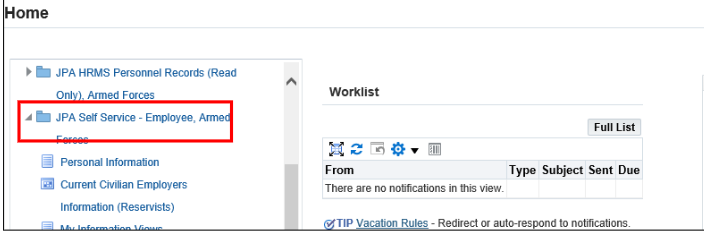
- click JPA Journey Application Claim
- click Self Service Journey Claim
The Journey Application history will be displayed.
- click Balances to proceed to the Current Journey Balances

- select the appropriate journey type (you may only have 1 option showing) and press Continue
- select Persons Travelling by clicking the Select box next to their name
- click Continue
- use the drop-down menus to select Outbound/ Inbound leg
- use the drop-down menus to select Method of Travel e.g. air, bus, car, ferry, passenger in car, train
- use Add Journey Leg to insert next stage of travel
JPA cannot process half journeys (one way only), therefore when a half warrant (one way only) has been used you should contact your Unit HR Admin who can adjust your balance accordingly.
Where GYH(O) entitlement is to be split over 2 journeys on occasions when the Service Person is unable to accompany family members to the UK (for Service reasons) and provided travel is to the same qualifying address you should contact your Unit HR Admin who can adjust your balance accordingly.
Manually submitted claims or claims for GYH (EY)(OA) must also be adjusted manually by the Unit HR Admin − JSP 752 Part 2 Chapters 5 & 6 refers.
- click Continue when all legs complete
You will now see a review of your journey application.
- note down the Journey Number
When the journey application is approved the journey number will be required to make your claim using JPA iExpenses
- click Continue to submit your journey application
You will see a Confirmation page, again showing your Journey Number
- click Exit to close the screen
If you have forgotten to note the Journey Claim details or would like an update on your request, go back into Self Service Journey Claim where this screen will show your Journey Number and current Status.
If you don’t have access to JPA then you get the approval of your Unit HR Admin before completing JPA Form 016 selecting one of the Expense Types 32-41 and XXX Type of Claim and submitting to them.
2. Arrange travel - If travelling by rail, ferry or air, speak to your Unit HR Admin or Personnel Office or travel centre to arrange tickets. For travel by any other means, you should make the journey arrangements yourself. Ensure you retain all receipts as proof of your journey.
3. Claim expenses - Reclaim any costs incurred by submitting your claim via JPA using the journey number provided during the application process. To do this:
- logon to JPA
- select JPA Expenses

- click Create New Expense Claim
- select the correct currency from the drop down list in Reimbursement Currency field.
This field defaults to GBP –Pound Sterling e.g. EUR-Euros You will not be permitted to select a reimbursement currency unless you have a valid bank account for that currency
- select Journey Non-Warrant Costs from the Type of Claim list of values (LOV)
- enter the approved Journey Number as the Authority for the claim
- in the Additional Information section enter
- the approved Journey Number in the Journey Number box
You may have to scroll to the right to view this box on the page
You must use an approved Journey Number to submit your claim. The Journey Number is created when you apply for a Self Service Journey on JPA. If you have no access to JPA your Unit HR Admin will issue a locally created Journey Number. This will mean you will then need to submit a JPA Form F016 – Manual Offline Claim as JPA will not recognise the locally issued Journey Number.
- do you need to change your unit identity number (UIN)?
- select Yes from LOV in Have you been told to use a UIN other than your own Units? field
- select new UIN/ORG from LOV in Select Your New UIN/ORG field
- insert Yes or No in Do you have the Authority of the Budget Holder field
- click Next
The Cash and Other Expenses: Details screen will be displayed.
- click Details

You now have to decide if you are claiming for Actuals Receipt Based Claims (GYH(O)(EY) Bus/Ferry/Flight/Rail/Taxi or Motor Mileage Allowance (MMA) within UK.
For GYH(O) (EY) Bus/Ferry/Flight/Rail/Taxi
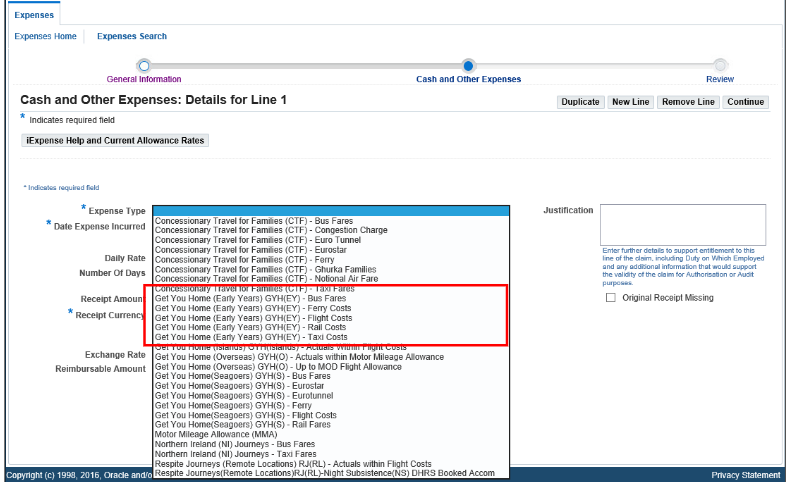
- select the appropriate Expense Type from the drop-down menu
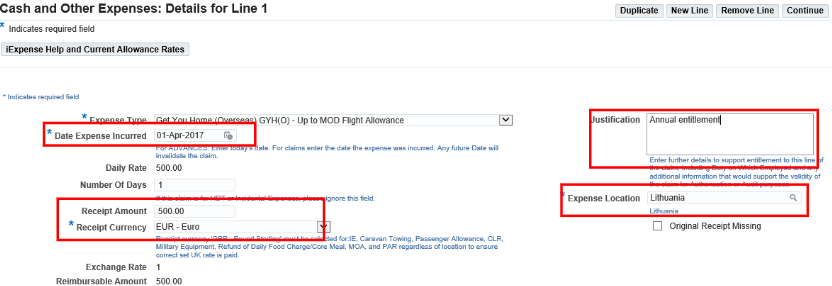
- enter Date Expense Incurred (if an Advance was given the Date Expense incurred must be the actual date of travel)
- enter Expense Location (Country), if applicable
- enter Receipt Amount, if applicable
- enter the Receipt Currency as appropriate
- enter relevant information in the Justification box
- click Continue
For Motor Mileage Allowance (MMA) within UK
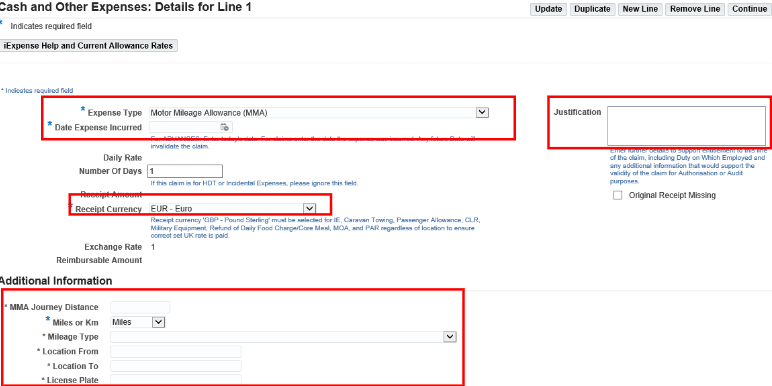
- select the Motor Mileage Allowance (MMA) from Expense Type the drop-down menu
- enter Date Expense Incurred (if an Advance was given the Date Expense incurred must be the actual date of travel)
- enter any other relevant information in the Justification box
- enter the Receipt Currency as appropriate
- Complete the Additional Information section
- MMA Journey Distance –enter journey distance on Date Expense Incurred
- miles or Km-select from the drop-down list
- Mileage Type-select from the drop-down list
- Location From–enter location from where journey started
- Location To–enter location where journey ended
- License Plate–enter vehicle registration details
- click Continue
The claim proceeds
- a summary of your claim will be displayed
- you may Save or Cancel your claim at this point by clicking the appropriate button, or make amendments by clicking on the Details icon
- click Next
The Expense Report Review screen will be displayed.
- check the details and if you are happy click Save, otherwise click on Back to amend the claim
- click the I accept the Terms & Conditions box
- click Submit
If you have a Defence Gateway account you can submit expenses from your own personal device on the MyExpenses app (part of the My Series).
