What you need to know
It is important that you have read and understood JSP 760 - Tri-Service Regulations for Leave and Other Types of Absences before proceeding.
You are responsible for requesting in advance the following types of leave of absence:
- Individual Leave Allowance (ILA)
- DOMCOL
- Re Engagement
- Relocation
- Future Accommodation Model (FAM) Property Sourcing Absence (from the FAM Pilot Scheme)
- Rest and Recuperation
- Leave –In Unit for Food
- Graduated Resettlement - Refer to Absences (Resettlement)
- Not Liable for Additional Duty Day (NLADD)
- Non Duty Day (NND)
ILA is broken down into 4 leave types i.e. Authorised Absence (AA), Post Operational Leave (POL), Sea goers’ Leave (SGL) and Annual Leave Allowance (ALA).
NLADD and NND can be applied when you have an approved Flexible Service (FS) arrangement, refer to JSP 750 Flexible working and flexible service.
Enhanced Leave should be applied for using JPA Self Service – Flexible Working.
JPA will automatically add 38 days Annual Leave Allowance (ALA) at the start of the leave year. This figure includes Public Holidays (PHs). For recording purposes PHs are treated as Individual Leave Allowance (ILA), therefore you must submit an absence request for ILA even if you will only take the PH itself.
Entitlements to AA (e.g. Stand downs and Watchkeepers leave), DOMCOL, Re-Engagement, Relocation, Future Accommodation Model (FAM) Property Sourcing Absence (from the FAM Pilot Scheme), Graduated Resettlement and Rest & Recuperation are entered by the Unit HR. Entitlements to POL and SGL are entered automatically by JPA. Unit HR's will add an entitlement to a stand down on behalf of the individual via JPA, the individual will then record leave via JPA for the stand down period using the 'ILA' Absence type in the drop down menu.
Where an individual is not required to work between cease work on a Friday and start work on a Monday, or an equivalent period for shift workers, a stand-down utilising the 'not required for duty' provisions, as used when a period of annual leave covers a weekend, will apply. Such absences only need to be recorded on JPA where an individual is paying food charges and will not be taking food from Service sources.
When submitting an absence request for ILA, JPA will automatically deduct leave from your ILA balance in the order AA, POL, SGL and ALA. If any leave is cancelled, regardless of reason, it will re-credit leave in reverse order.
JPA will not deduct days from your ILA balance for weekend absence included in your ILA absence dates.
If your rank requires you to have approval for leave of absence (Leading Hands, Corporals and below), your request will be forwarded via Workflow to your Line Manager.
You can, with the agreement of your Line Manager (LM), add an 'approver' to your Self Service request if you know your LM is going to be absent and unable to approve your leave request. This facility is available to all ranks should your LM require it.
Any leave not recorded prior to start date, must be passed to the Unit HR for action, utilising the JPA Form: JPA R001 –Application for Leave or Other Absence Types.
Cancellations must also be passed to the Unit HR utilising the JPA Form: JPA R002 - Cancellation or Amendment to Absence Request.
If applying for or cancelling absence for Property Sourcing as part of the FAM Pilot Scheme, use the ‘Other’ absence type field.
JPA free text fields
Caution: Many data fields on the JPA System are entered in free-text format and are not subject to validation. You should be aware that data from these fields is subject to extraction and reporting, and it is imperative that the fields should only be used for their intended purpose. You should also be attentive of the content of the data being entered and remain alert to the fact that it may be viewed by other personnel. Inappropriate use may result in the release of inappropriate data to individuals or organisations and has the potential to cause embarrassment to other Users and the MOD.
What you need to do
To create and submit a leave of absence you need to:
- logon to the JPA
- navigate to JPA Self Service – Employee, Armed Forces > Leave of Absence
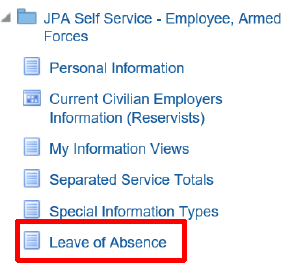
The Leave of Absence screen which appears will show any leave that you may have already requested. It is suggested you check how much leave you have left before you submit an application.
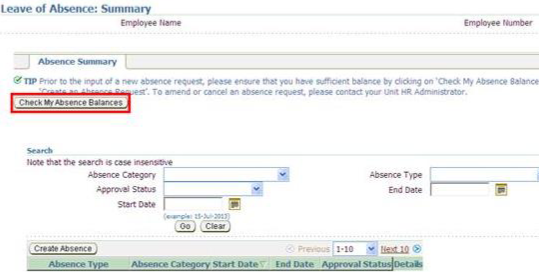
- click Check my Absence Balance
The ‘View Absence Balances’ screen which appears will show the amount of leave you have left i.e. the balance. It also provides details of Absences awaiting Approval and Absences Approved.
- click on the + sign or either Show ILA Balances or Other Balances as appropriate
- details of ILA balances and Other balances are broken down into specific headings
- click Back
- this will take you to the main screen
To create the absence you will need to:
- navigate to JPA Self Service - Employee, Armed Forces > Leave of Absence
- click Create an Absence Request to submit a new request
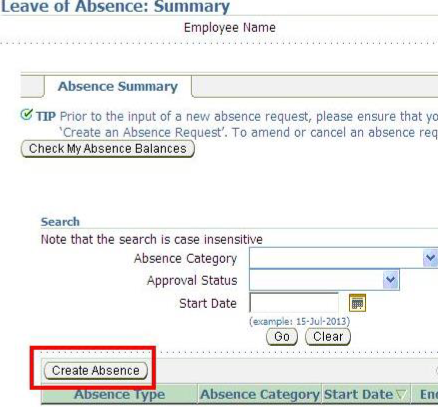
- the ‘Create an Absence Request’ screen will appear
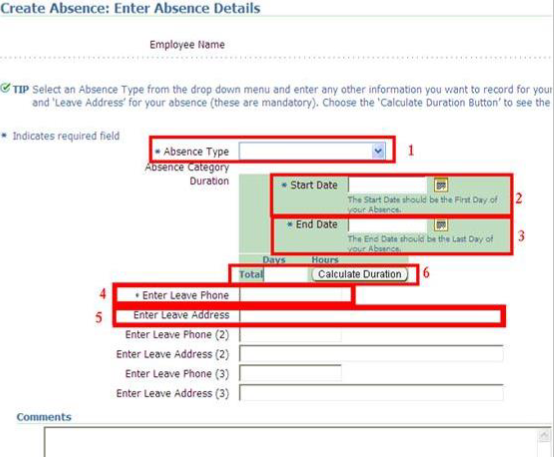
- enter your Leave of Absence information in the appropriate fields
- compulsory fields indicated by a * must be entered
- the 'start date' is the first day you do not come into work, the 'end date' is the day before you come back from leave. Select dates from calendar
- click Calculate Duration
- click Next
The ‘Leave of Absence: Review’ screen appears which will show the information you are about to submit. It is at this point you can amend the details, if necessary, by clicking the Back button.
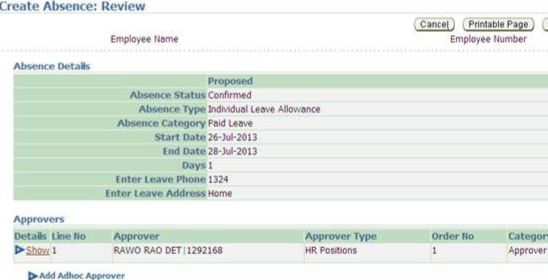
- add any comments for the Approver in the Comments to Approver screen
- if it is necessary for the application to be approved by an adhoc Approver e.g. current LM absent, you need to click the Add Adhoc Approver icon and enter details as appropriate
- click Submit if you are happy with all entries
The ‘Confirmation’ screen appears.
Please note: The comments 'The changes have been submitted for approval' will appear even if you are at Petty Officer/Sergeant level or above. In the event of the Confirmation screen does not appear, contact your Unit HR Admin.
Check your workflow notifications to view the progress of your request.
