You can submit an appeal following a Flexible Service (FS) application that has not been approved or an alternative offer that you have rejected.
Note: A FS appeal may be lodged when a FS application has not been approved (Rejected) or an alternative offer has been made and which you have rejected. The process of FS appeal is the same for both.
In this example, the appeal is against a FS application that has been rejected.
- logon to JPA, the following screen appears with a workflow notification showing that a FS Application has been Rejected
- open the Workflow Notification
- note that if there is no Workflow Notification for example if you previously closed the Workflow Notification, and you wish to appeal, navigate:
- JPA Self Service – Employee, Armed Forces > Flexible Service
- select the radio button of the rejected FS Application and click View FS
- the Flexible Service Details screen will open. Select the radio button of the rejected application and click View Application
- the FS Application screen will appear. Click Appeal and the FS Appeal screen will appear
- follow steps later in this task from the point of the FS Appeal screen to submit the Appeal
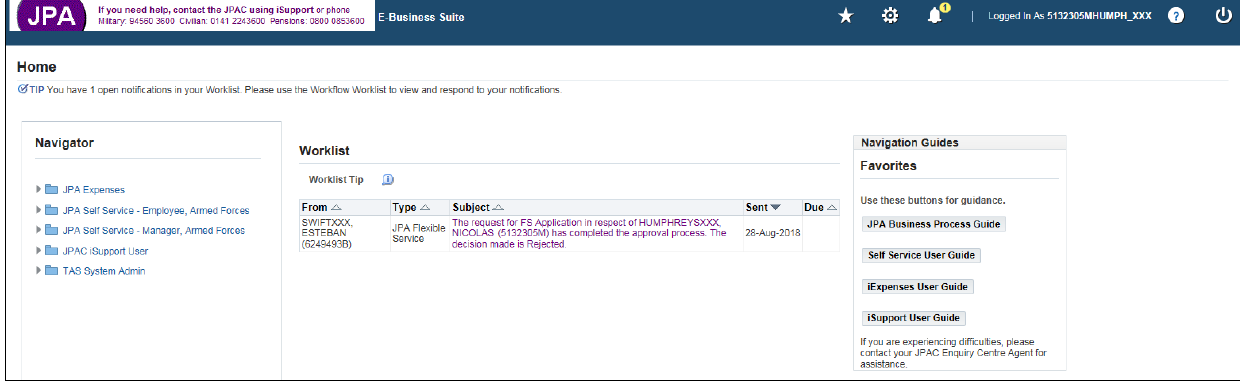
- on opening the Workflow Notification the Worklist screen will appear:
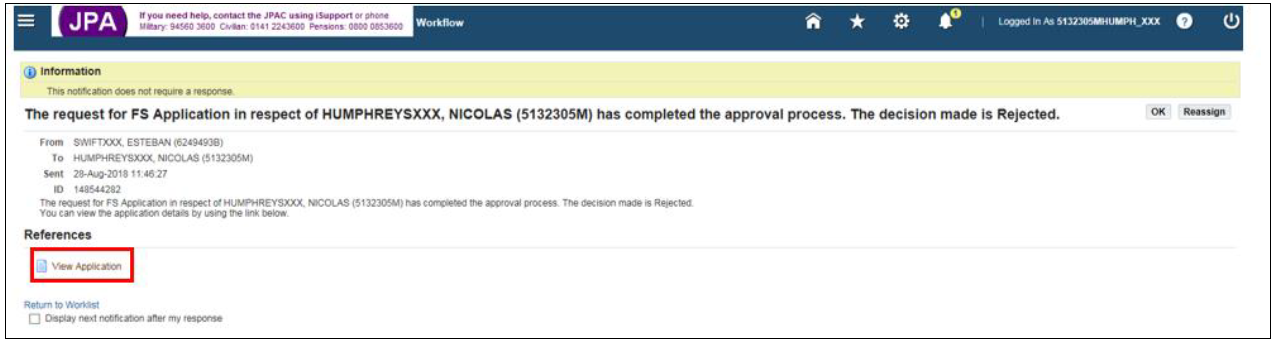
- tick the check box relating to the Rejected FS Application and click Open

- the following screen will appear. Click View Application
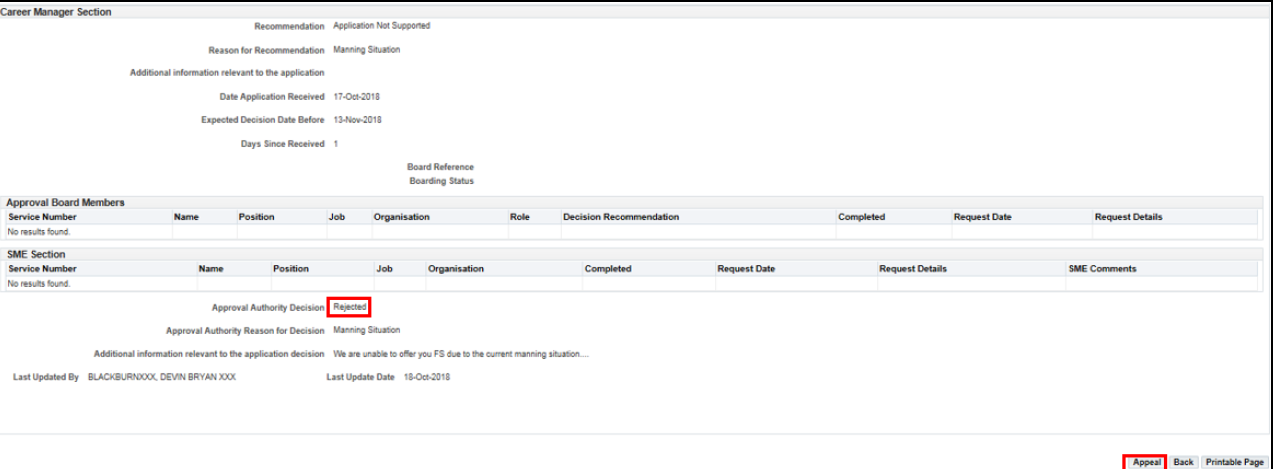
- the full details of the FS Application will then appear, showing the decisions and comments made by all actors in the FS Application administrative chain. In the screenshot below, only the Career Manager section is shown, along with the Appeal and Printable Page buttons
- note the Approval Authority Decision of Rejected
- click Appeal to open the first appeal screen
- the FS Appeal screen will appear
- note the Appealed Application Type. In this example, the appeal is against a FS Application
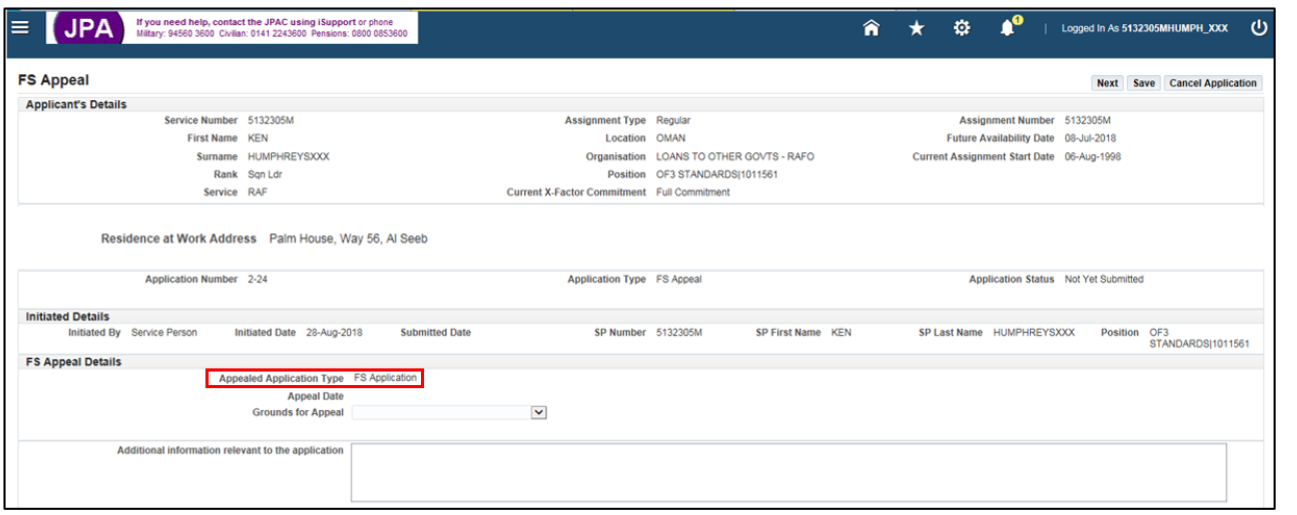
- the Appeal Date will be populated once the FS Appeal has been submitted
- select the Grounds for Appeal from the drop-down list, whichever applies
- add any relevant information in the free text box

- click Next to progress the FS Appeal to the next stage, or Save or Cancel as appropriate
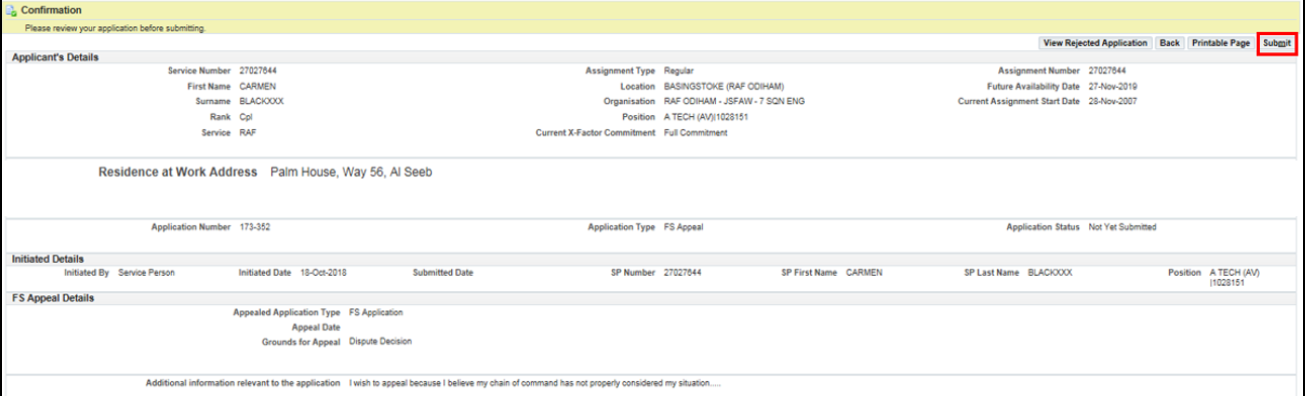
- the FS Appeal review screen will appear
- click to Submit the FS Appeal
- once submitted the Appeal Date will be populated with the date of submission
- a message will confirm successful submission of the FS Appeal along with any warnings if applicable

- workflow Notifications will be sent to all actors involved in the FS Appeal process
- the outcome of the FS Appeal will be advised via a Workflow Notification once it has been determined
