alphaThis is a new service - your feedback will help us to improve it...
Phone numbers
What you need to know
You are able to update phone numbers within personal information held on JPA.
What you need to do
To update phone numbers, you need to:
scroll down to the Phone Numbers section where you can either Add a phone number for the first time, or Add Update or Delete your existing phone numbers
If you see an Add button you do not currently have a phone number in your personal information. If you see an Update button it means that you already have a phone number which you can update or you can add an additional phone number.
Depending on which action you need to take, please follow the instructions below.
To add a phone number onto the JPA system, you need to:
click Add
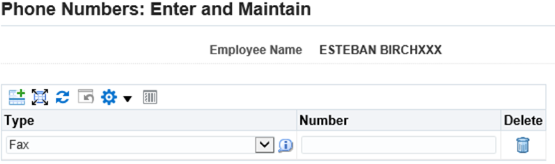
the Phone Numbers: Enter and Maintain screen will be displayed
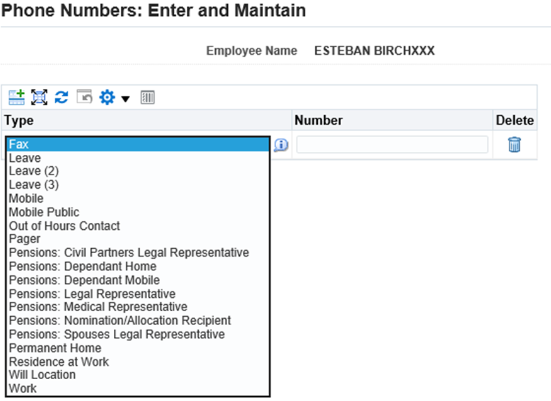
select the appropriate type of phone number you are adding from the Type List of Values
phone Number Type of Will Location should not be used
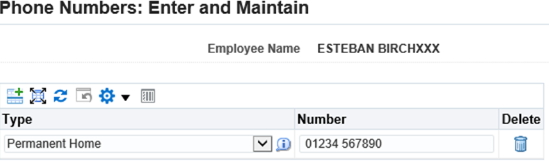
enter your phone number in the Phone Number field
click Next
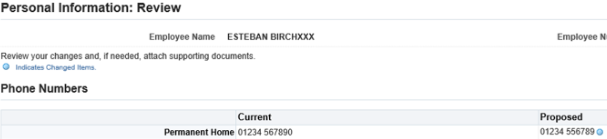
The ‘Personal Information: Review’ screen will be displayed showing the details to be added -this will be indicated by a small blue dot icon.
Check to ensure you have not exceeded the 30 character limit and that you have not included any text characters in your input.
You will then need to:
click Submit
the ‘Confirmation’ screen will be displayed showing the changes that have been applied
To update an existing phone number, you need to:
click Update
either select a change of [type] of phone number or amend the actual phone number
this field will allow the input of up to 60 characters, however exceeding 30 characters will have an adverse impact in other areas of JPA
until this problem is fixed, you are to limit your input to 30 characters, using numbers only (i.e. no text)
click Next
the ‘Personal Information: Review’ screen will be displayed showing the proposed amendment - this will be indicated by a small blue dot icon
check the ensure you have not exceeded the 30 character limit and that you have not included any text characters in your input
click Submit
a confirmation screen will be displayed showing the changes that have been applied
Add to an existing phone number
To add to an existing phone number, you need to:
click Update
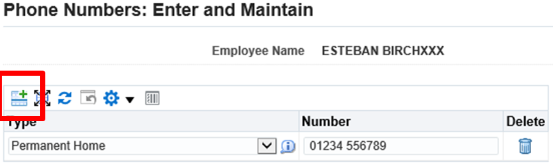
click Add Another Row icon, as highlighted below
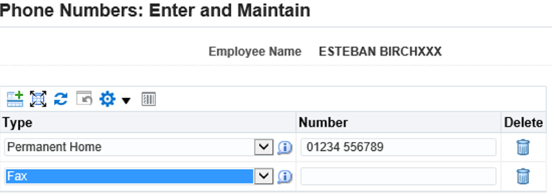
two new fields will be displayed under the existing phone number
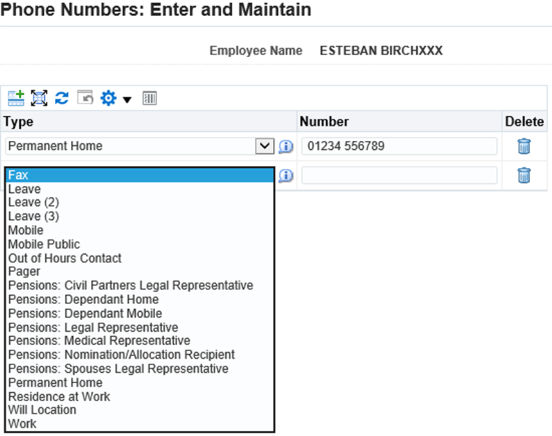
select the appropriate type of phone number you are adding from the Type List of Values
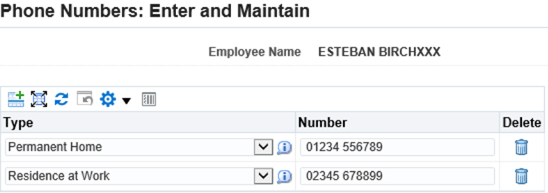
enter your phone number in the Number field
this field will allow the input of up to 60 characters, however exceeding 30 characters will have an adverse impact in other areas of JPA
until this problem is fixed, you are to limit your input to 30 characters, using numbers only (i.e. no text)
select Next
the ‘Personal Information: Review’ screen will be displayed showing your new details - this will be indicated by a small blue dot icon
check the ensure you have not exceeded the 30 character limit and that you have not included any text characters in your input
click Submit
a confirmation screen will be displayed showing the changes that have been applied
To delete an existing phone number, you need to:
click Update
the Phone Numbers: Enter and Maintain screen appears
click the Delete blue waste bin next to the phone number you wish to delete
click Next
the Personal Information: Review screen will be displayed showing the proposed deletion - this will be indicated by a small blue dot icon
click Submit
a confirmation screen will be displayed showing the changes that have been applied
We use cookies to collect information about how you use this website. We use this information to make the website work as well as possible. Tell us whether you accept these cookies.