What you need to do
To maintain and add your basic personal details within JPA, you need to:
- click Update in the Basic Details screen
The ‘Basic Details: Choose Option’ screen is displayed. The choice you make depends upon what you need to do.
Correcting or completing current personal information
- if you need to correct some information that is already in your record or want to finish completing details, select the Correct or complete the current details radio button
- click Next
The ‘Basic Details: Correct Information’ screen is displayed. Any information that you can update will be displayed with an area into which you can enter data.
Entering new basic personal information
- if you need to amend existing information because it has changed, select the Enter new information because of a real change to the current details radio button
- the ‘Basic Details: Update Information’ screen will be displayed
- the first entry you need to make is the Effective Date - this is the date from which your information is being update
- enter the Effective Date
- any information that you can update will be displayed with a field in which you can enter data
- enter your required information
- click Next
Please note: This area now has a field for recording an email address, however, because this field has been used for other purposes in the past there may be historical data held there, this data can be ignored and should be deleted or overtyped as necessary. Importantly this field is free text so care should be taken to ensure that the email address is entered in the correct format.
This email address, which is to be your private email, for example @hotmail.co.uk and not an MOD email address, will be used to provide you with information both during your service and following your termination, depending upon the consents which you have given within the Data Protection Legislation Compliance fields.
If you have any issues or concerns you should contact your Unit HR Admin.
The ‘Personal Information: Review’ screen will be displayed showing which changes have been made. These are indicated using a small blue dot icon.
If you realise that you have made a mistake you can click the Back button and make some changes. If you do not want to keep the information click the Cancel button.
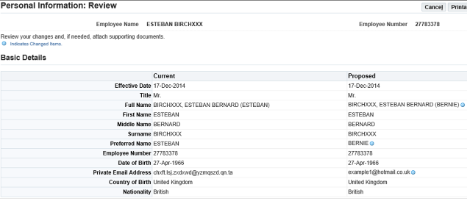
Click Submit and the ‘Confirmation’ screen will be displayed showing that your changes have been applied.
