What you need to know
If you know your login details for JPA and action needs to be taken, please follow the instructions below.
What you need to know
Your JPA password will expire after 182 days and you will be informed that your password has expired and requires changing.
What you need to do
When you are required to change your expired JPA password you will be presented with the Change Password screen. You will need to complete the following steps:
- enter the password you have been using into the Current Password field
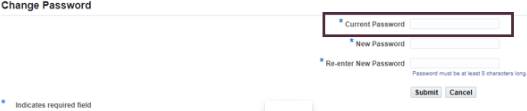
- enter your password in the New Password field. Please ensure your new password meets the criteria below:
- be a minimum of 8 characters
- have at least one number
- have at least one capital letter
- have at least one non-alphanumeric character –e.g. $£^&%
- does not contain your username or use consecutive repeating characters
- re-enter your new password in the Re-enter New Password field
- click the Submit button
You will then be able to access JPA providing you have met the approved password format.
If you are unable to change your password, you will need to contact the JPAC Enquiry Centre who will provide you with a new temporary password on verification of identity.
What you need to know
If you would like to reset your JPA password and know your current password, you can do this at any time. Should you wish to do this there are some considerations prior to undertaking the task:
- ensure that you access JPA via the JPA portal
This will allow you to obtain the latest updates on any JPA issues and notifications.
- ensure that you take care in entering your password, you have 5 attempts to access JPA correctly
The 6th incorrect attempt will result in your account being locked out.
If your account is locked out, you will be required to contact the JPAC Enquiry Centre who will provide you with a new temporary password on verification of identity.
What you need to do
To change your JPA password you will need to complete the following steps:
- logon to JPA using the JPA Online Login button
- enter your username in the Username field
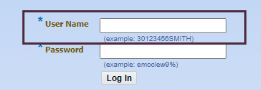
- enter your password into the Password field
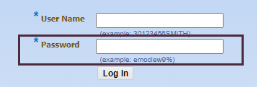
- click the log in button
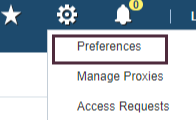
- from the top of the page click the cog icon

- select preferences
The General Preferences screen will be displayed.
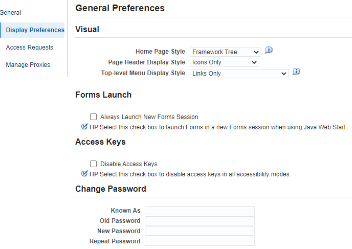
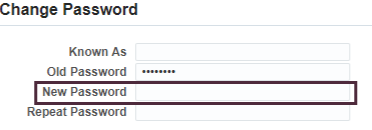
- within the Change Password section, enter the password you have been using in the Old Password field
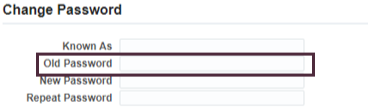
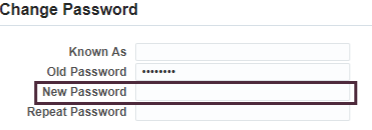
- enter your new password in the New Password field. Please ensure your new password meets the criteria below:
- be a minimum of 8 characters
- have at least one number
- have at least one capital letter
- have at least one non-alphanumeric character –e.g. $£^&%
- does not contain your username or use consecutive repeating characters
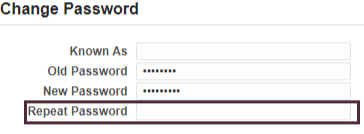
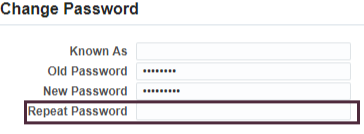
- re-enter the new password in the Repeat Password field
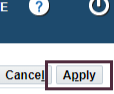
- from the top right of the screen, click Apply
You will then be able to access JPA providing you have met the approved password format.
