What you need to know
You may want to claim back money you have spent as part of your service duties.
It is important that you have read and understood JSP 752 Tri-Service Regulations for Expenses and Allowances before proceeding.
What you need to do
- logon to JPA
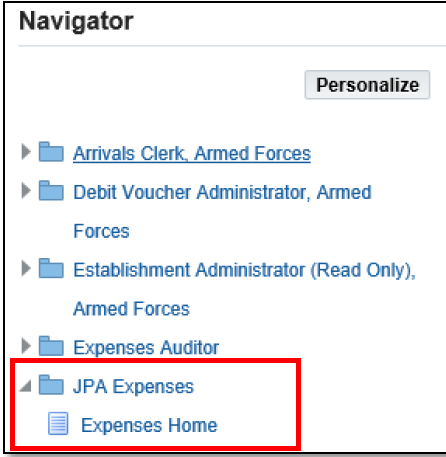
- click JPA Expenses and then Expenses Home
- click Create New Expense Claim
- iExpense Help button is available throughout should you require assistance

- populate the General Information screen:
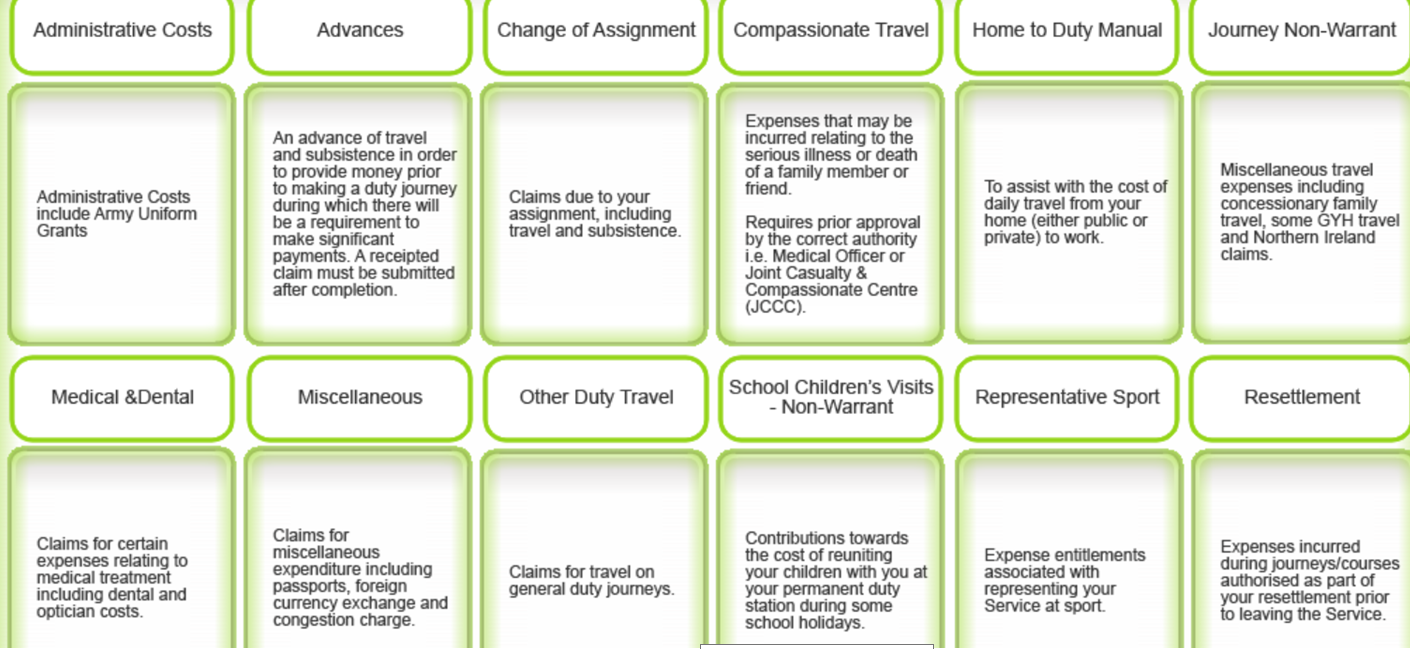
- choose Type of Claim from the List of Values (LOV) - this will depend on the expense you are submitting:
- enter the Authority for the claim e.g. the Authorising Officer, Joining Instruction reference
- choose a Reimbursement Currency from the LOV
- if claiming against your Unit's Identity Number (UIN) then click Next
- if claiming against another UIN enter the UIN
The Create Expense Report: Cash and Other Expenses screen will be displayed.
- click the details icon at the end of Line 1
The Cash and Other Expenses: Details for Line 1 screen will be displayed - this is where the main details of the expense claim are entered.
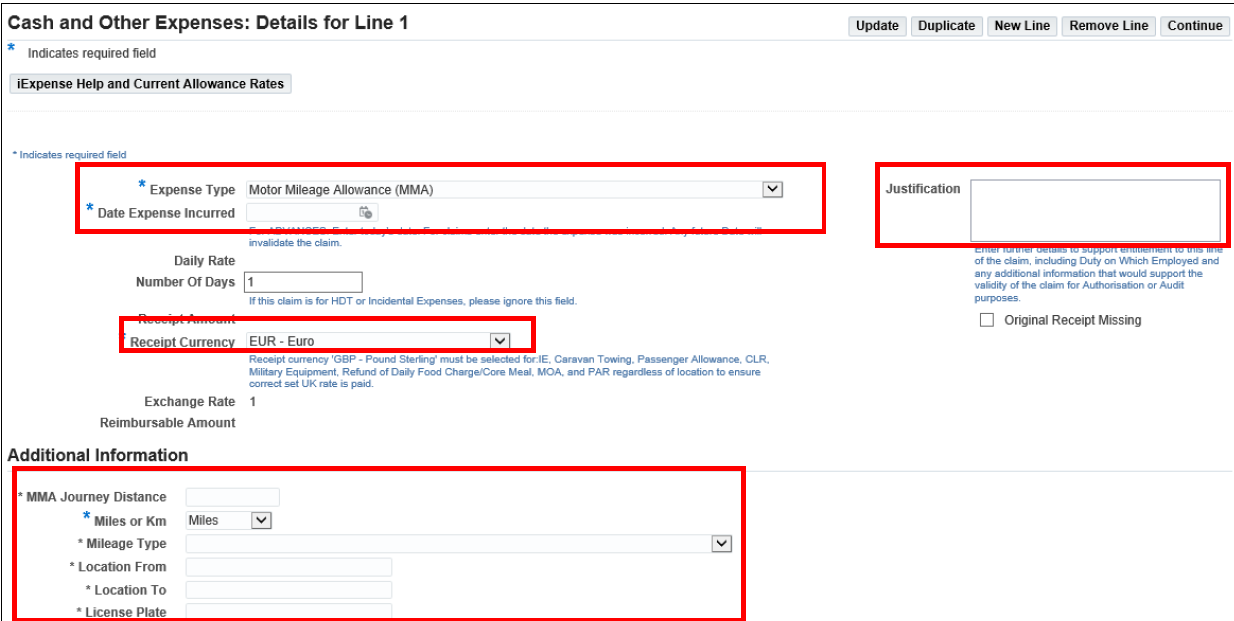
- select Expense Type from LOV e.g. Parking Fees
- enter Date Expense Incurred
- enter Number of Days claimed (this defaults to 1 but can be changed)
- enter relevant details in the Justification box
- the Receipt Currency defaults to GBP - Pounds Sterling but can be changed if you wish to be paid in a different currency
- the Additional Information fields must be completed before you can continue
These fields are different depending on the expense type you enter
- click Continue
- you may Save or Cancel you claim at this point, or make amendments by clicking on the Details icon or the Back button
- you can also add another expense by clicking the details icon on line 2 and repeating the steps above
- the Reimbursable Amount has been updated to show the amount to be refunded in the currency you selected at the start of the claim
- click Next to continue
The Create Expense Report: Review screen is displayed where you can now review and submit the claim.
- check the details and click Save if you are content that the claim is accurate and in accordance with policy
- click I accept the Terms & Conditions box
Confirmation that your expense claim has been submitted is displayed, along with a reference (P) number. Make a note of the reference number for future reference.
If there are any policy violations in your expense claim you will see a message to this effect and the claim will automatically be sent for approval.
If you click Return you will see that the submitted expense report is listed, along with the Report Status. You can check the status of your claim at any time by going to the Expenses Home page.
If you have a Defence Gateway account you can submit expenses from your own personal device on the MyExpenses app (part of the My Series).
